
Installing Microsoft Office 2021 Pro Plus LTSC is slightly different from installing the standard retail version of Office. Instead of downloading a simple installer and clicking “Next” a few times, Office LTSC 2021 is installed using the Office Deployment Tool, also known as ODT.
This guide will walk you through the full process, from downloading the official Microsoft Office Deployment Tool to creating the configuration file, downloading the installation files, installing Office, and activating it with your product key.
Microsoft Office LTSC 2021 is a long-term servicing version of Office designed for users and organizations that need classic Office apps with a stable feature set. Microsoft describes Office LTSC as a perpetual, device-based release that is separate from Microsoft 365 subscription plans. It includes classic Office apps such as Word, Excel, PowerPoint, Outlook, OneNote, Access, and Publisher on Windows.
What Is Microsoft Office 2021 Pro Plus LTSC?
Microsoft Office 2021 Pro Plus LTSC is part of the Office Long Term Servicing Channel. LTSC stands for Long Term Servicing Channel, which means this version is built for stability and long-term use instead of receiving frequent feature changes.
Unlike Microsoft 365, Office LTSC 2021 does not receive new feature updates after release. Microsoft states that Office LTSC 2021 receives security and quality updates, but not ongoing new features like Microsoft 365 Apps.
Office 2021 Pro Plus LTSC is commonly used by professionals, businesses, and advanced users who want a stable Office installation on Windows.
Before You Start
Before starting the installation, make sure you have:
- A Windows 10 or Windows 11 PC
- A stable internet connection
- Administrator access on your computer
- The official Office Deployment Tool from Microsoft
- A valid Microsoft Office 2021 Pro Plus LTSC product key
- Enough free disk space for the Office installation files
Microsoft recommends using the latest version of the Office Deployment Tool when deploying Office LTSC 2021. The official deployment process includes downloading ODT, creating a configuration XML file, downloading the Office installation files, and installing Office through ODT.
For this tutorial, we will use the Downloads folder as the main working folder. This keeps the process simple and makes it easier to follow the commands later.
Example folder path:
C:\Users\YourName\DownloadsReplace YourName with your actual Windows username.
Step 1: Download the Office Deployment Tool
The first step is to download the Office Deployment Tool from Microsoft.
Follow these steps:
- Open your browser.
- Go to the official Microsoft Download Center page for the Office Deployment Tool.
- Click Download.
- Save the file inside your Downloads folder.
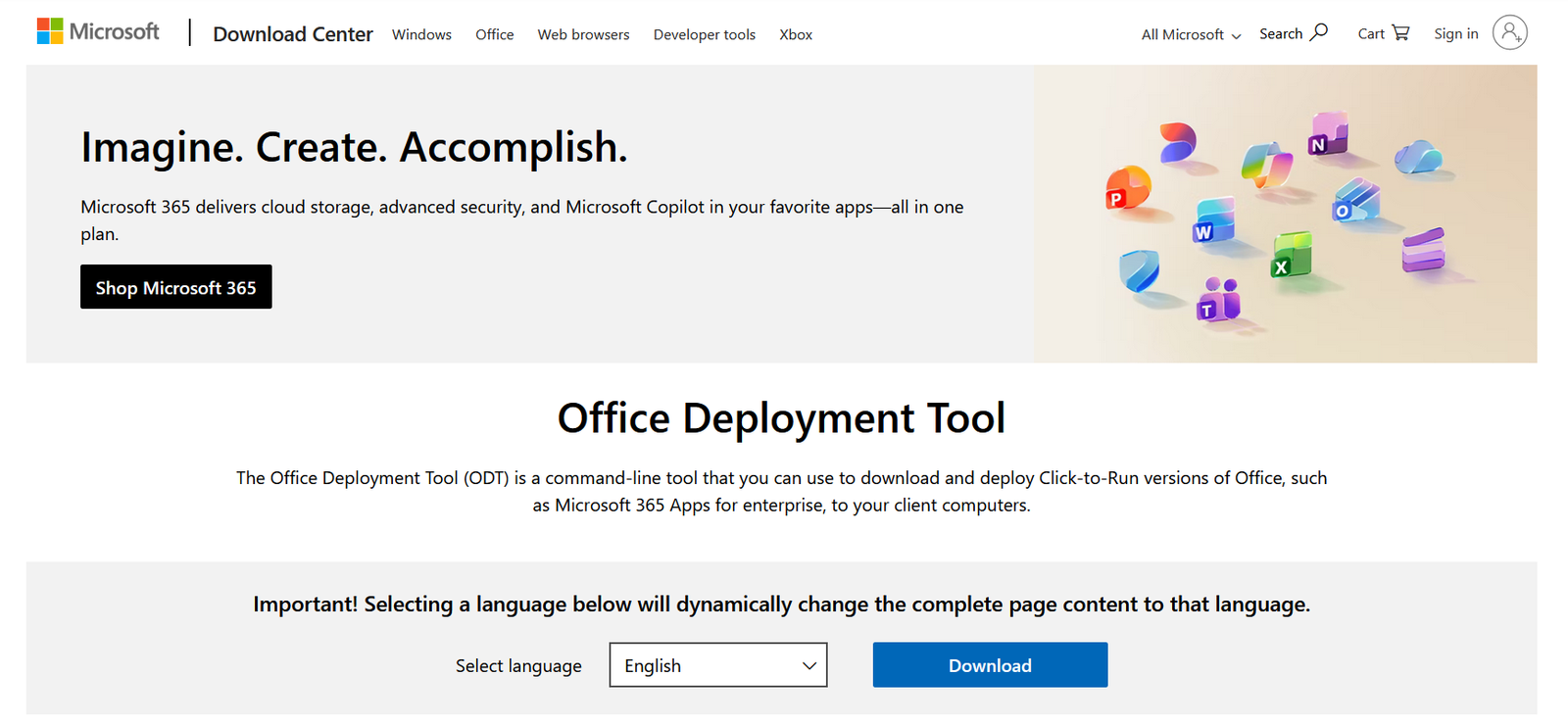
The Office Deployment Tool is the official Microsoft tool used to download and deploy Click-to-Run versions of Office, including Office LTSC 2021. Microsoft’s deployment documentation also recommends using the latest version of ODT when installing Office LTSC 2021.
After downloading, your file will usually look similar to this:
officedeploymenttool_xxxxx-xxxxx.exeKeep this file in your Downloads folder.
Step 2: Create the Configuration XML File
Next, you need to create a configuration file. This file tells the Office Deployment Tool which Office product to download and install.
You can create this file using Microsoft’s Office Customization Tool.
Follow these steps:
- Open the Office Customization Tool from Microsoft.
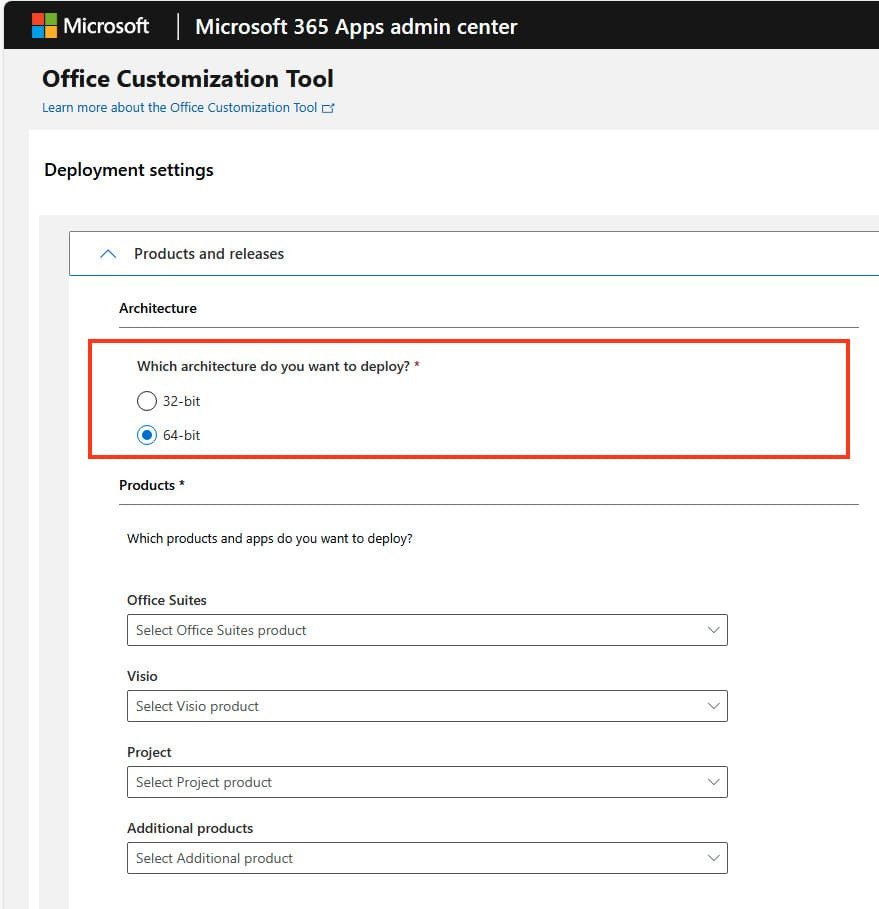
- Choose the correct architecture: 32-bit or 64-bit.
To check whether your Windows system is 32-bit or 64-bit:- Open Windows Settings.
- Go to System.
- Click About.
- Look for System type under Device specifications.
Most modern laptops and desktops use 64-bit Windows, so 64-bit Office is usually the best option unless you have a specific reason to use 32-bit.
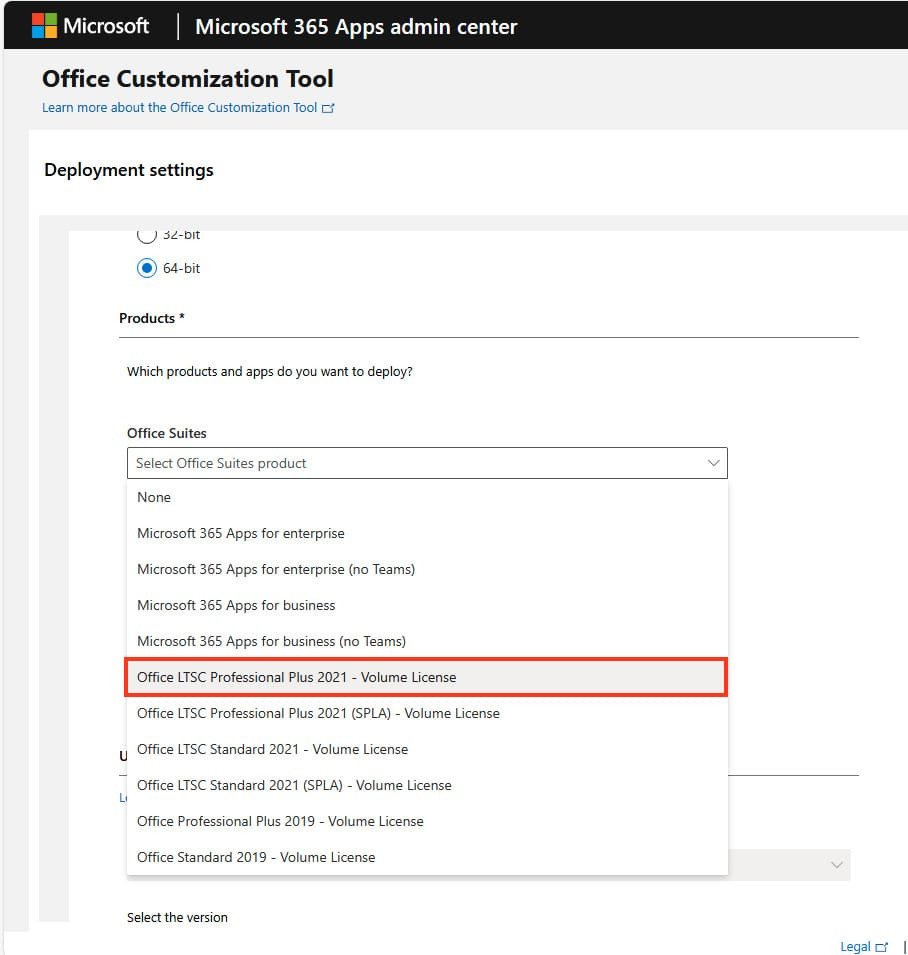
- Under Office Suites, select Office LTSC Professional Plus 2021 – Volume License.
- Choose your preferred language, for example English.
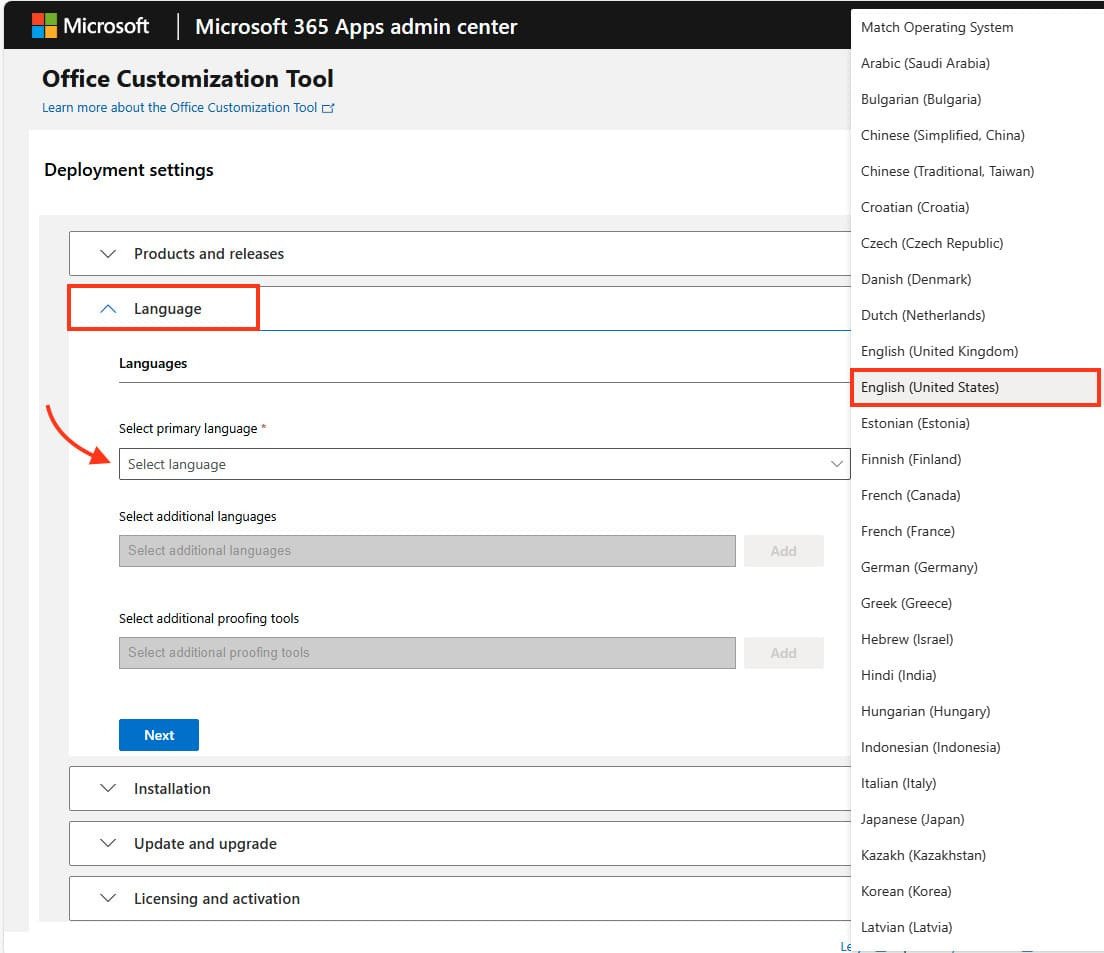
Step 3: Export the Configuration File
After setting up the Office Customization Tool, export the configuration file.
Follow these steps:
- Scroll to the bottom of the Office Customization Tool page.
- Click Export.
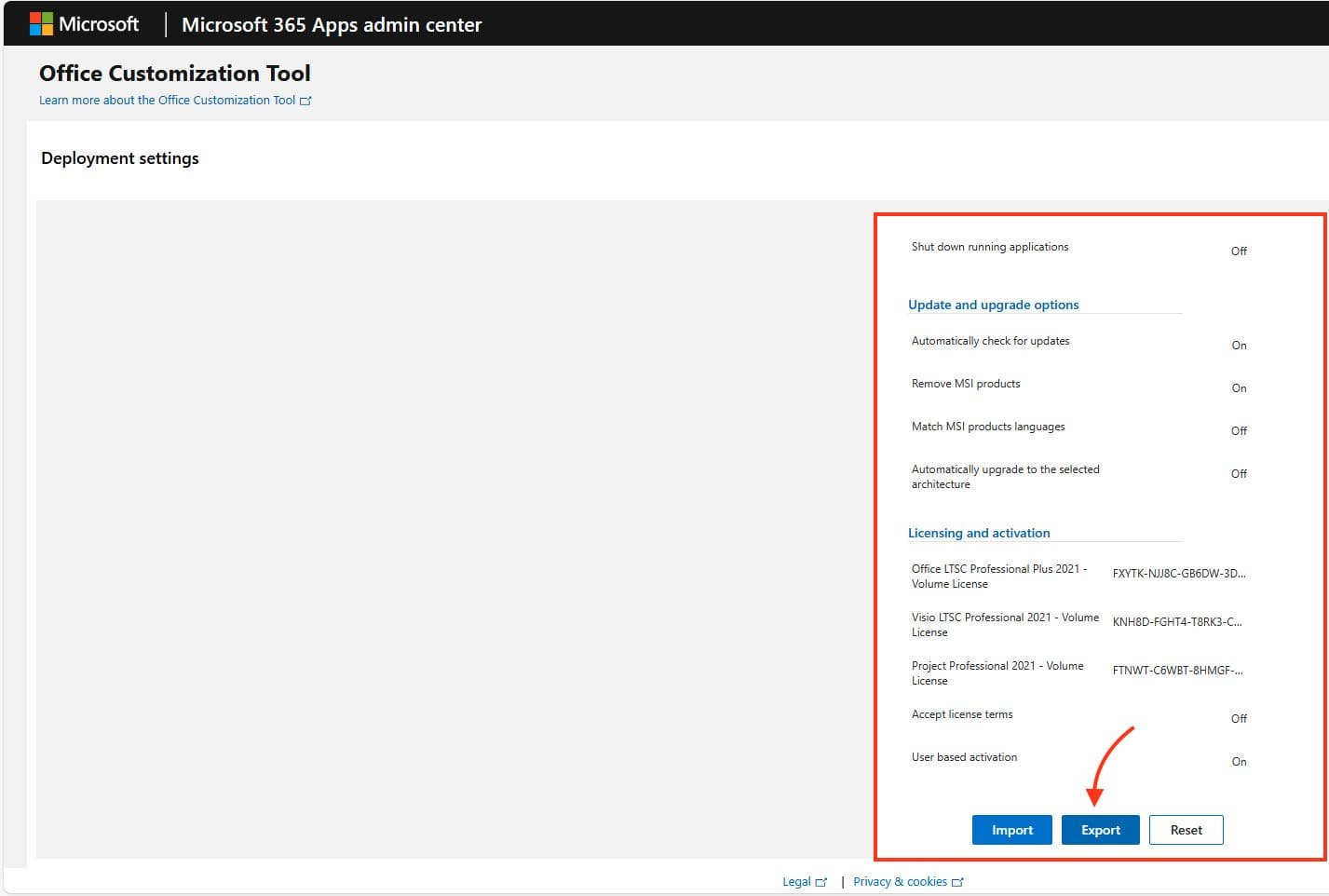
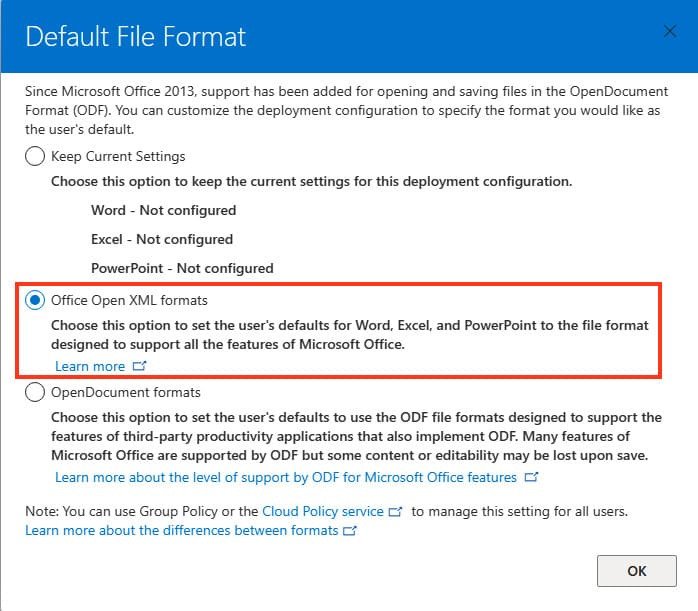
- Choose Office Open XML formats.
- Click OK.
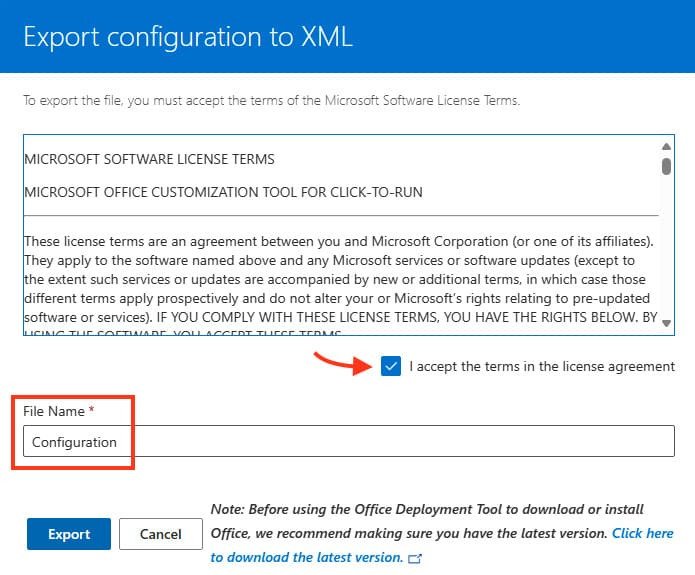
- Accept the license agreement.
- Enter the file name: Configuration
- Click Export.
- Save the file in your Downloads folder.
The file should be saved as: Configuration.xml
At this point, your Downloads folder should contain:
officedeploymenttool_xxxxx-xxxxx.exe
configuration.xml
This is important because the Office Deployment Tool and the configuration file need to be in the same working folder for the commands to be easier.
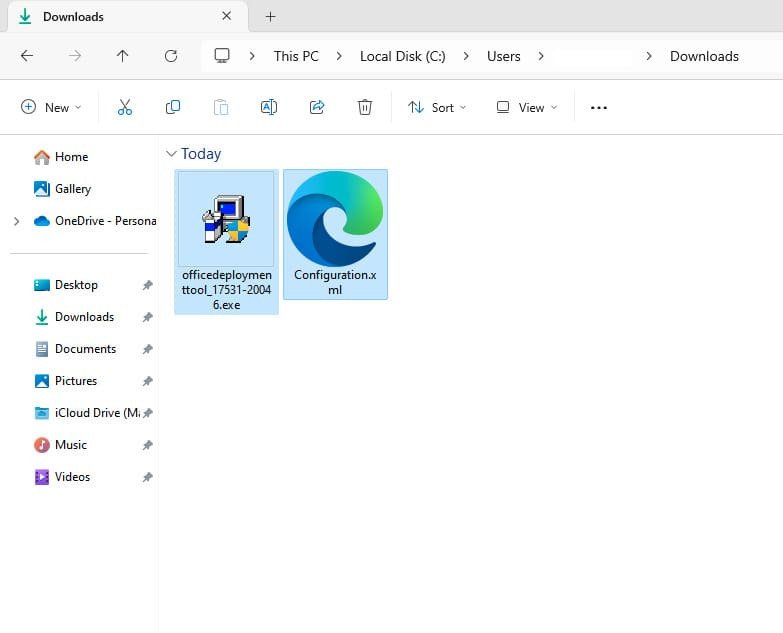
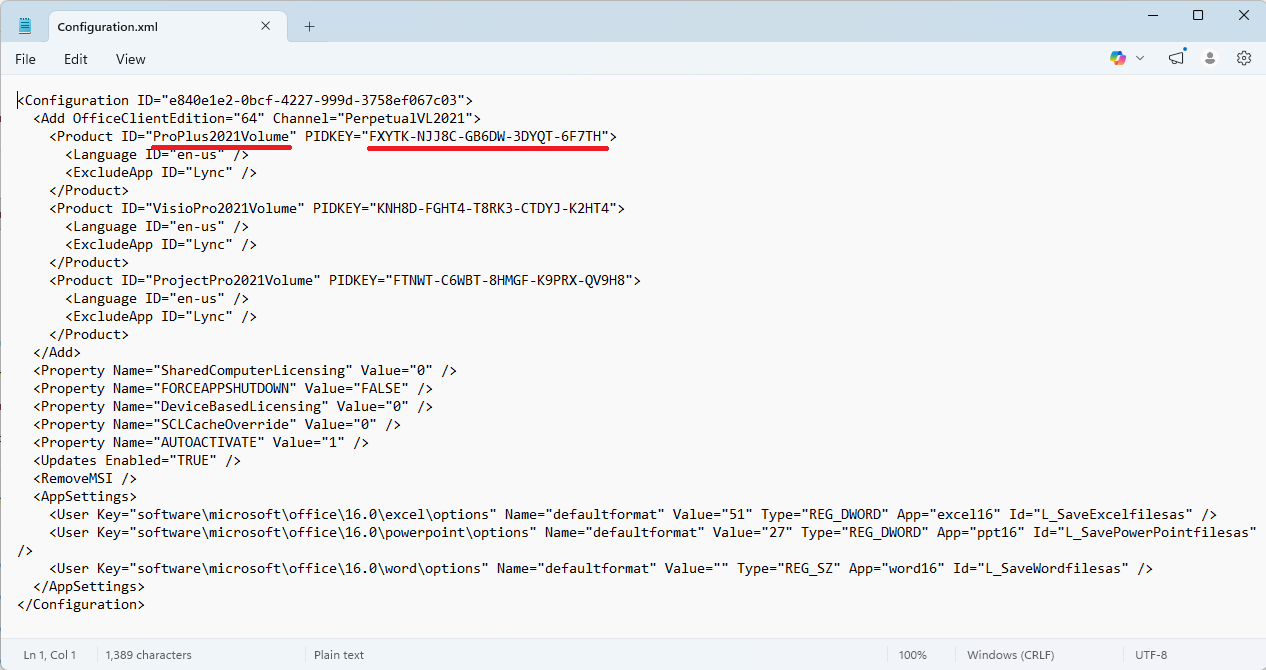
- Right-click the Configuration.xml file, then select Edit in Notepad.

- Find the default PIDKEY value for ProPlus2021Volume and replace it with your own product key.
👉 Don’t have a product key yet? Get your Office 2021 Pro Plus LTSC product key here, then continue with the installation steps below.
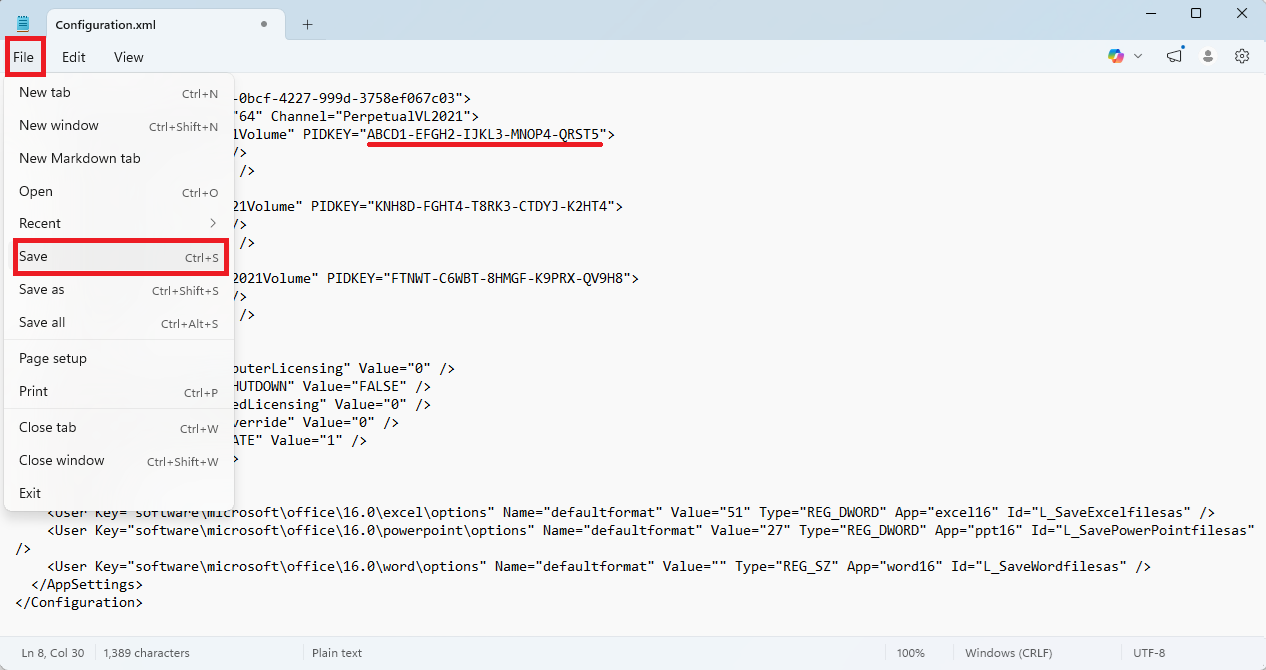
- For example, if your product key is ABCD1-EFGH2-IJKL3-MNOP4-QRST5, replace the existing PIDKEY value with that key.
- After editing the file, click File > Save to save your changes, then close Notepad.
Step 4: Extract the Office Deployment Tool
Now you need to extract the Office Deployment Tool.
Follow these steps:
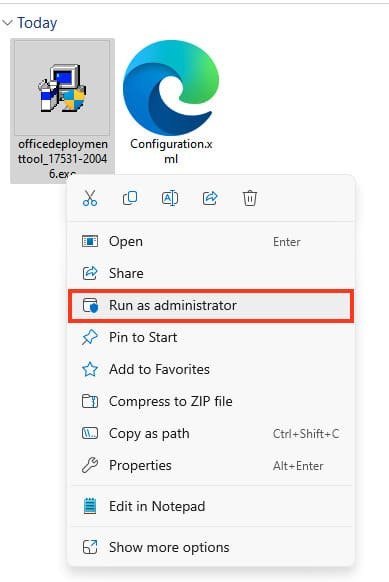
- Go to your Downloads folder.
- Right-click the Office Deployment Tool file.
- Select Run as administrator.
- Click Yes if Windows asks for permission.
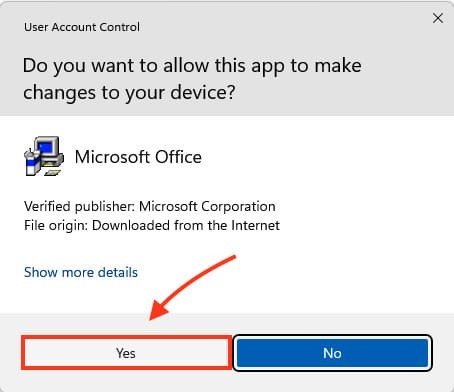
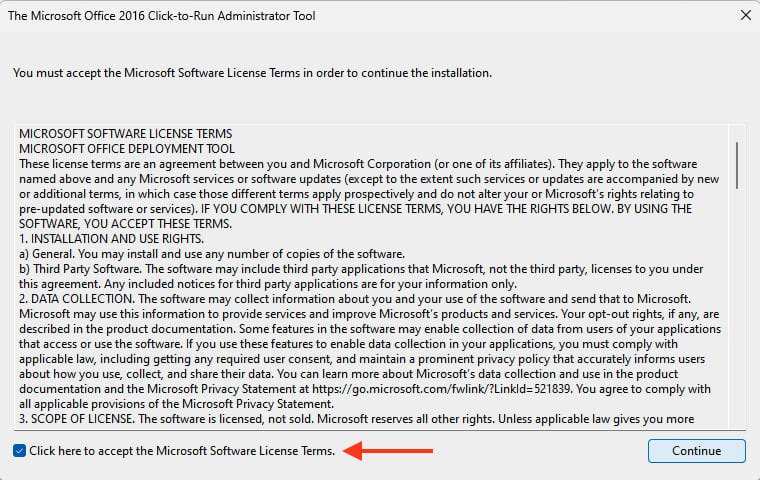
- Accept the Microsoft Software License Terms then click Continue.
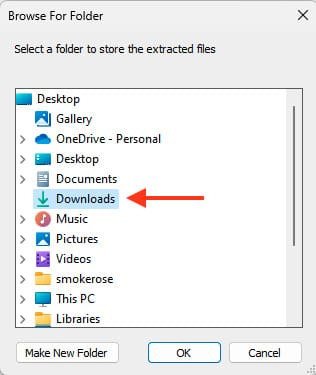
- Choose the Downloads folder as the extraction location.
- Click OK.
- Files will be extracted.
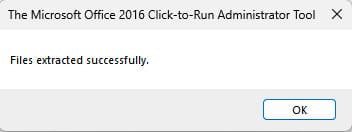
After extraction, a file named setup.exe will appear in your Downloads folder. You may also see several sample XML files.
The most important files are:
setup.exe
configuration.xml
Make sure both files are in the same Downloads folder.
Step 5: Copy the Downloads Folder Path
Before using Command Prompt, you need to copy the folder path.
Follow these steps:
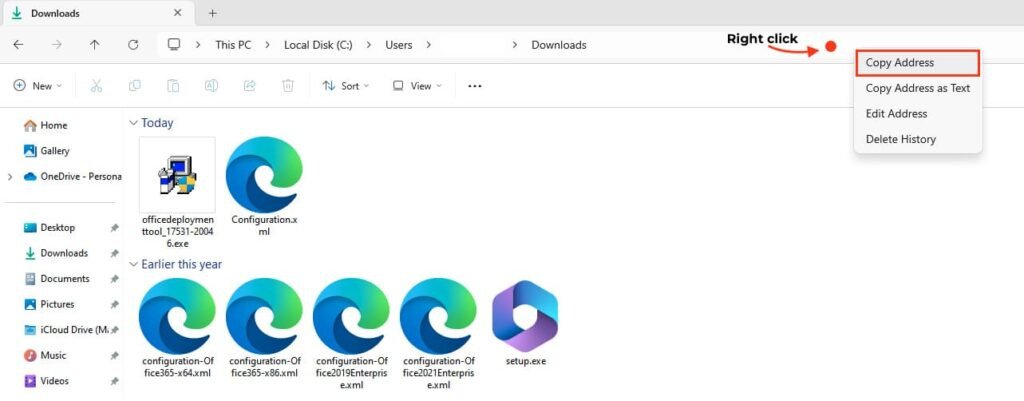
- Open your Downloads folder in File Explorer.
- Click the address bar at the top.
- Copy the full folder path. Example: C:\Users\YourName\Downloads. You will use this path in Command Prompt.
Step 6: Open Command Prompt as Administrator
Now open Command Prompt with administrator permission.
Follow these steps:
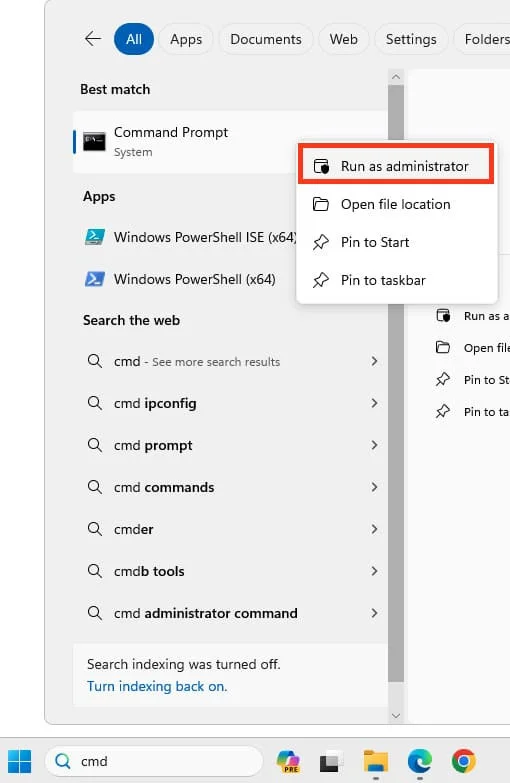
- Click the Windows Start button.
- Type cmd.
- Right-click Command Prompt.
- Choose Run as administrator.
- Click Yes when Windows asks for permission.
❗️ This step is important. If Command Prompt is not opened as administrator, the download or installation process may fail.
Step 7: Go to the Downloads Folder in Command Prompt
In Command Prompt, type:
cd Then press Space, paste the Downloads folder path you copied earlier (Press CTRL-V to paste), and press Enter.
Example:
cd C:\Users\YourName\Downloads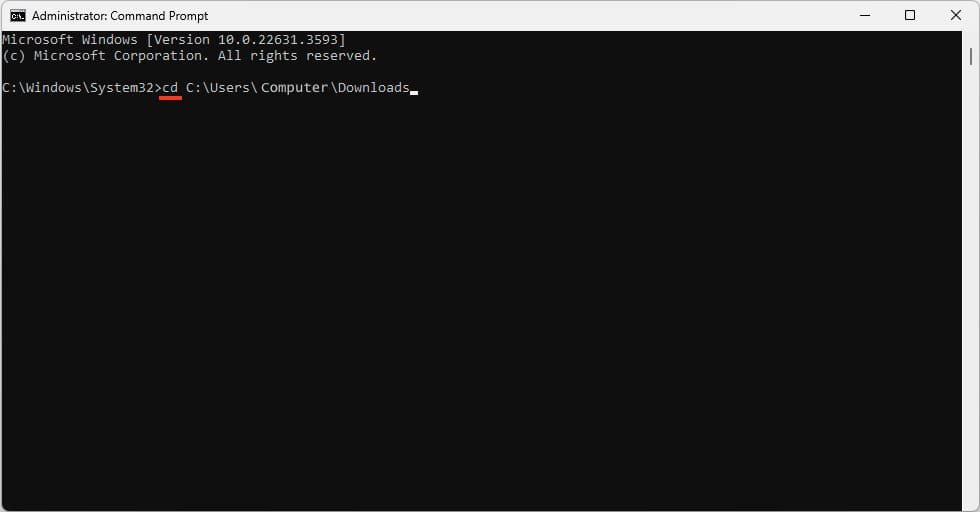
If the command works, Command Prompt should now point to your Downloads folder.
Example:
C:\Users\YourName\Downloads>Step 8: Download the Office 2021 Pro Plus LTSC Installation Files
Now you can download the Office installation files.
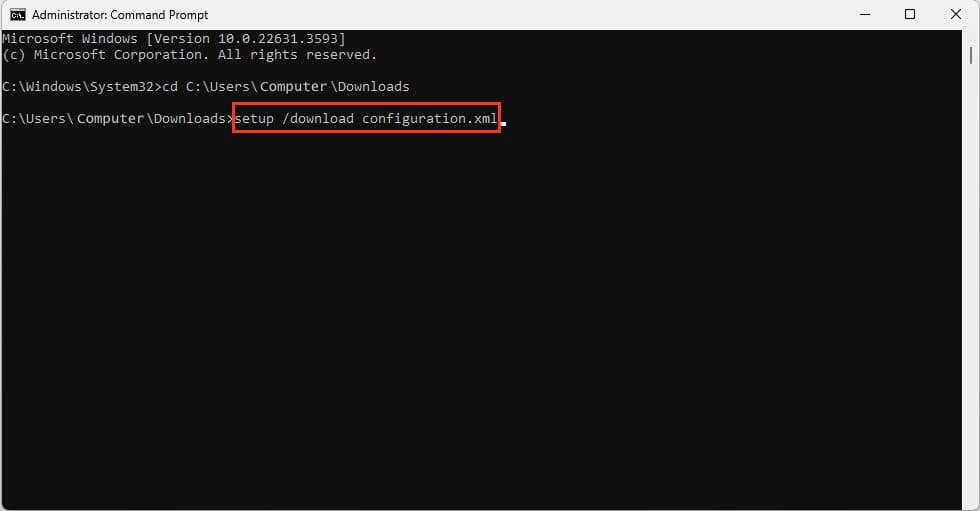
In Command Prompt, run this command:
setup /download configuration.xmlThen press Enter.
The download will start in the background. In many cases, Command Prompt will not show a progress bar. This is normal.
During this process:
- Do not close Command Prompt.
- Do not restart your computer.
- Do not disconnect your internet connection.
- Wait until Command Prompt becomes usable again.
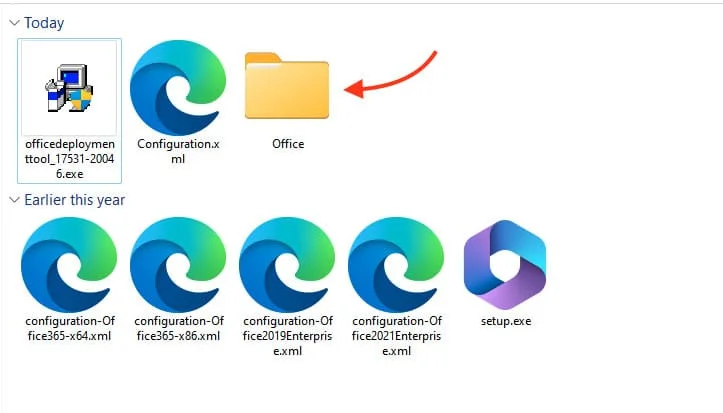
When the download is complete, you should see a new folder named Office inside your Downloads folder.
The download time depends on your internet speed. It may take around 10–30 minutes.
Step 9: Install Microsoft Office 2021 Pro Plus LTSC
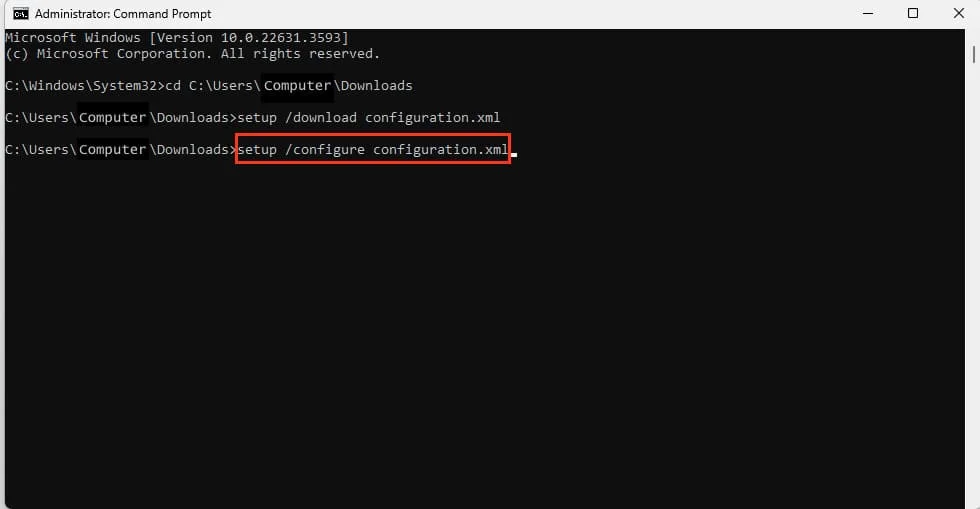
After the download is complete, run the installation command:
setup /configure configuration.xmlThen press Enter.
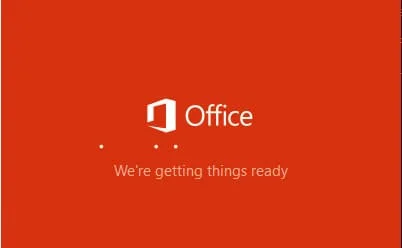
The Office installer will start automatically. Wait until the installation process is complete.
During installation:
- Keep your PC turned on.
- Do not close the installer.
- Do not close Command Prompt.
- Wait until Office finishes installing.

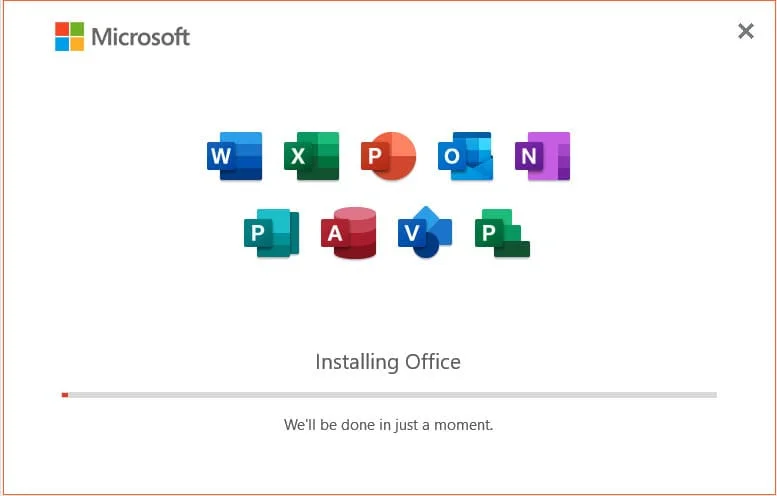
When the installation is complete, you should see a success message. Click Close when prompted.
At this point, Microsoft Office 2021 Pro Plus LTSC should be installed on your Windows PC.
Step 10: Activate Office 2021 Pro Plus LTSC
The final step is activation.
Follow this guide to activate Office 2021 Pro Plus LTSC.
System Requirements
Before installing Office 2021 Pro Plus LTSC, make sure your device meets the basic requirements.
| Component | Requirement |
|---|---|
| Operating System | Windows 10 or Windows 11 |
| Processor | 1.6 GHz or faster, dual-core |
| RAM | 4 GB or more |
| Storage | At least 4 GB free disk space |
| Display | 1280 × 768 resolution or higher |
| Internet | Required for download, installation, and activation |
Office 2021 LTSC is not recommended for unsupported older systems such as Windows 7 or Windows 8.1.
Quick Installation Summary
| Step | Action | Command / Note |
|---|---|---|
| 1 | Download ODT | From Microsoft Download Center |
| 2 | Create XML file | Use Office Customization Tool |
| 3 | Export XML file | Save as configuration.xml |
| 4 | Extract ODT | Extract to Downloads folder |
| 5 | Copy folder path | Copy Downloads path |
| 6 | Open CMD | Run as administrator |
| 7 | Go to Downloads | cd C:\Users\YourName\Downloads |
| 8 | Download Office files | setup /download configuration.xml |
| 9 | Install Office | setup /configure configuration.xml |
| 10 | Activate Office | Enter product key |
Common Installation Problems and Fixes
Command Prompt says setup is not recognized
This usually means Command Prompt is not inside the correct folder.
Fix:
- Make sure setup.exe is in your Downloads folder.
- Use the cd command to go to the Downloads folder.
- Open Command Prompt as administrator.
Nothing happens after running the download command
This can be normal because the Office Deployment Tool may download files silently.
Fix:
- Wait several minutes.
- Check if an Office folder appears inside Downloads.
- Do not close Command Prompt while the download is running.
The installation does not start
This may happen if the XML file is incorrect or if the files are not in the same folder.
Fix:
- Make sure setup.exe and Configuration.xml are in Downloads.
- Check that the file name is exactly Configuration.xml.
- Run Command Prompt as administrator.
Product key does not activate Office
This usually happens when the installed Office edition does not match the product key.
Fix:
- Confirm that you installed Office LTSC Professional Plus 2021.
- Make sure the product key is for Office 2021 Pro Plus LTSC.
- Try phone activation if online activation is not available.
Why Use the Office Deployment Tool?
The Office Deployment Tool gives you more control over how Office is installed. It lets you choose the Office edition, architecture, language, and installation settings using a configuration XML file.
For Office LTSC 2021, Microsoft’s official deployment process uses the Office Deployment Tool to download and install the correct Office files.
FAQ
Can I install Office 2021 Pro Plus LTSC without the Office Deployment Tool?
For Office LTSC volume license editions, the recommended method is to use the Office Deployment Tool. This helps ensure that the correct Office LTSC edition and configuration are installed.
Is Office 2021 Pro Plus LTSC the same as Microsoft 365?
No. Office 2021 Pro Plus LTSC is a one-time purchase / perpetual Office version. Microsoft 365 is a subscription service with ongoing feature updates and cloud-based benefits.
Does Office LTSC 2021 receive new features?
No. Office LTSC 2021 receives security and quality updates, but it does not receive ongoing new feature updates like Microsoft 365 Apps.
Can I install Office 2021 Pro Plus LTSC on Windows 7?
No. Use a supported Windows version such as Windows 10 or Windows 11.
Why does Command Prompt not show download progress?
This is normal. The Office Deployment Tool may download files silently in the background.
What should I do if activation fails?
Check that you installed the correct Office edition, entered the correct product key, and have a stable internet connection. If online activation does not work, phone activation may be required.
Need an Office 2021 Pro Plus LTSC Product Key?
To activate Office after installation, you need a valid Office 2021 Pro Plus LTSC product key. Make sure the key matches the installed edition.
You can browse our Office 2021 Product Keys or choose Microsoft Office LTSC Professional Plus 2021 if you need a product key for Windows.
If your activation requires phone activation, you can also use our Free GetCID Tool to help generate a Confirmation ID from your Installation ID.
Final Thoughts
Installing Microsoft Office 2021 Pro Plus LTSC may look complicated at first, but the process becomes simple when you follow the correct order:
Download ODT → Create configuration.xml → Extract setup.exe → Open CMD as admin → Download Office files → Install Office → Activate with product keyUsing the Downloads folder keeps everything easy to find and helps avoid path errors during the command steps.
After Office is installed and activated, you can start using classic Office apps such as Word, Excel, PowerPoint, Outlook, Access, Publisher, and OneNote on your Windows PC.