Microsoft Office LTSC Pro Plus 2024 is designed for users who need a stable, feature-rich productivity suite without ongoing subscription costs.
Visit Digital Keys Depot to buy a legitimate Microsoft Office Product Key.
For Office LTSC Pro Plus 2024, get the correct version here: Microsoft Office LTSC Pro Plus 2024 Key
The installation process is a bit different from older versions, as it uses the Office Deployment Tool (ODT) for a customized and streamlined setup. Here’s a step-by-step guide to help you install Office LTSC Pro Plus 2024 on your PC.
Step 1: Uninstall Previous Office Versions
Uninstall any previous Office versions from your PC to avoid conflicts.
Step 2: Download the Office Deployment Tool
Start by downloading the official Office Deployment Tool from Microsoft.
Download the Office Deployment Tool
Step 3: Create a Setup Folder
Open File Explorer and create a new folder on your C: drive named Office2024Setup.
Path: C:\Office2024Setup
Step 4: Extract the Office Deployment Tool
- Run the file you downloaded in Step 1.
- If prompted by User Account Control, click YES.
- Accept the Microsoft Software License Terms and click Continue.
- When asked where to extract, select your new folder:
C:\Office2024Setup, then click OK.
Step 5: Create the Configuration File
- Open Notepad.
- Copy and paste the following configuration, replacing
XXXXX-XXXXX-XXXXX-XXXXX-XXXXXwith your product key:
<Configuration>
  <Add OfficeClientEdition="64" Channel="PerpetualVL2024">
    <Product ID="ProPlus2024Volume" PIDKEY="XXXXX-XXXXX-XXXXX-XXXXX-XXXXX">
      <Language ID="en-us" />
    </Product>
  </Add>
  <RemoveMSI />
  <Display Level="None" AcceptEULA="TRUE" />
  <Property Name="AUTOACTIVATE" Value="1" />
</Configuration>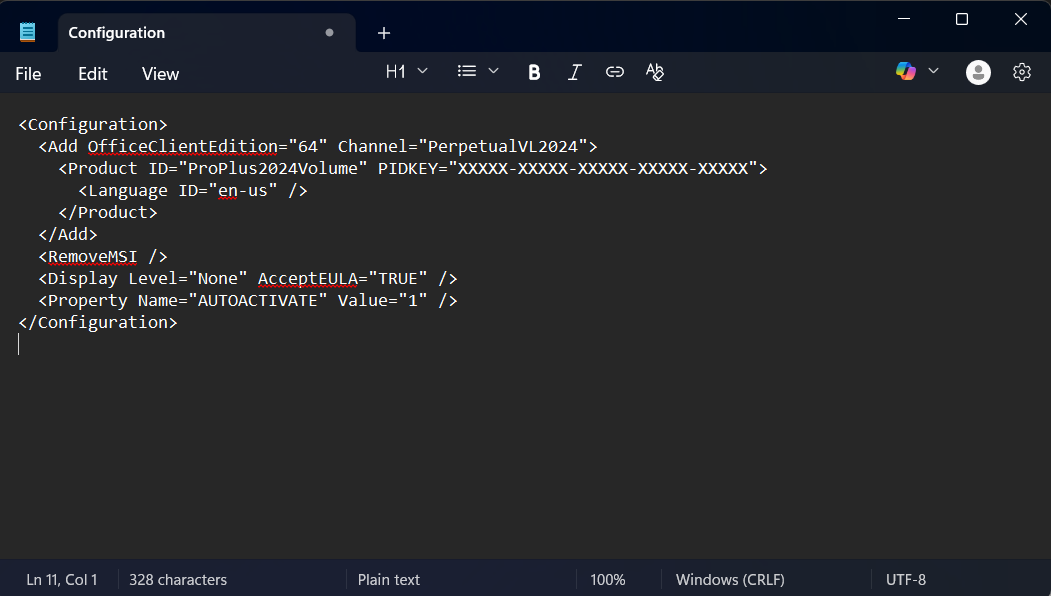
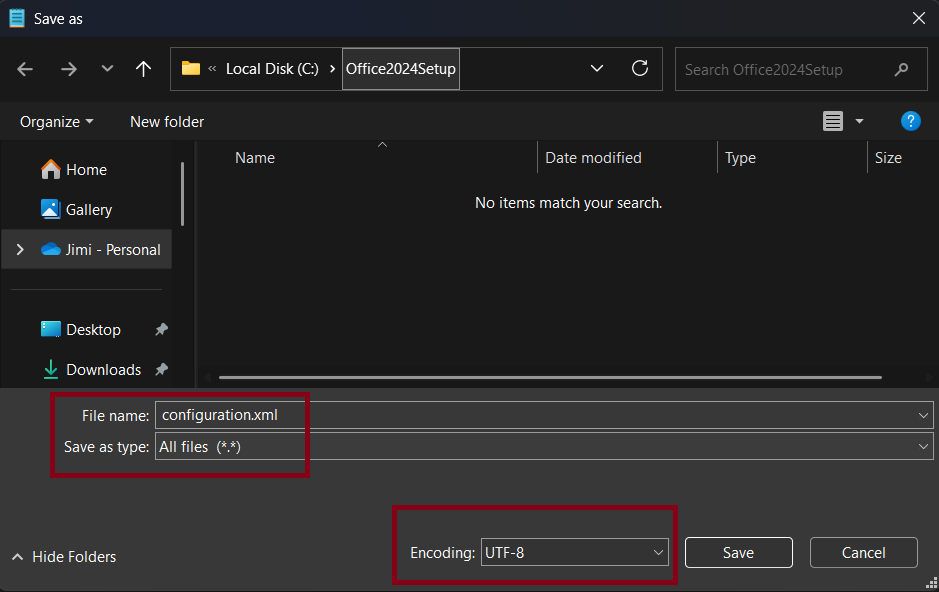
- Go to File > Save As.
- Set the file name to:
configuration.xml - Set Save as type to: All Files
- Set Encoding to: UTF-8
- Save the file in
C:\Office2024Setup.
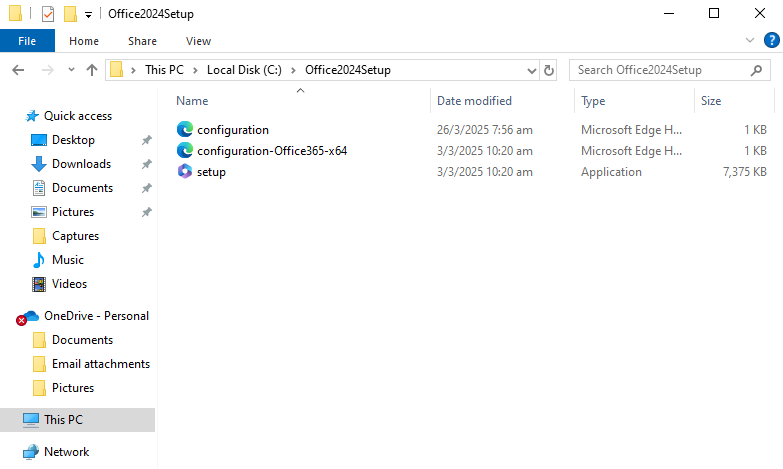
Step 6: Verify Your Folder Contents
Your C:\Office2024Setup folder should now contain:
setup.execonfiguration.xml- Other files extracted from the deployment tool
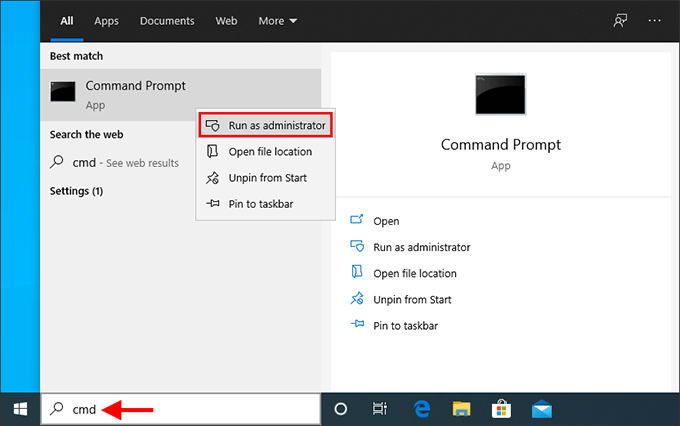
Step 7: Open Command Prompt as Administrator
- Click the Windows (Start) button, type CMD.
- Right-click Command Prompt and select Run as administrator.
Step 8: Navigate to the Setup Folder
In the Command Prompt window, type the following command and press Enter:
cd C:\Office2024Setup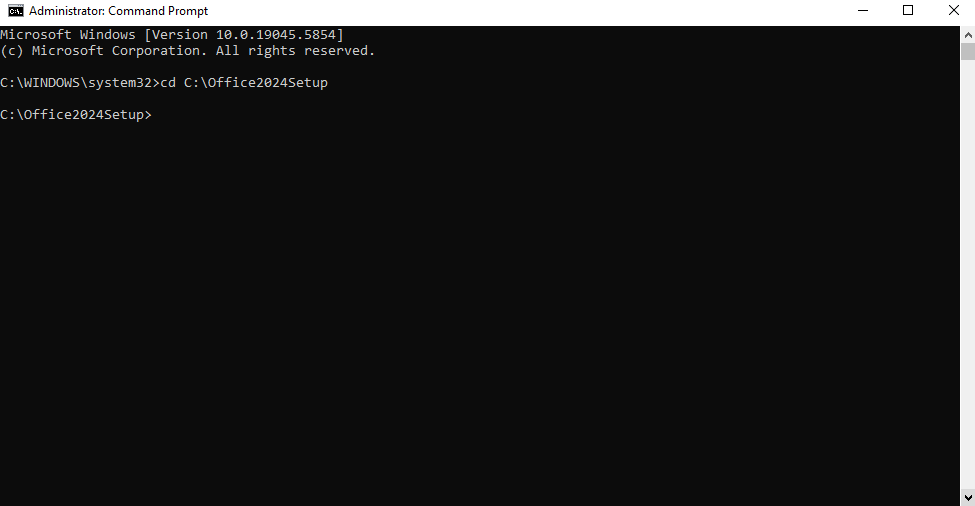
Step 9: Start the Office Installation
Type the following command and press Enter:
setup.exe /configure configuration.xml⚠️ Important Notes
- The installation runs silently in the background; you won’t see a typical installer window. You cannot type anything in the command prompt while installing.
- Installation is complete when the Command Prompt returns to C:\Office2024Setup> and Office apps (Word, Excel, etc.) appear in your Start Menu.
- You can now launch your Office applications and start to activate Office LTSC Pro Plus 2024!
Conclusion
Installing Microsoft Office LTSC Pro Plus 2024 with the Office Deployment Tool gives you full control over your setup and ensures a smooth, silent installation. By following these steps, you’ll have the latest Office suite ready to use in no time—no subscription required!
If you need to customize your installation further, the Office Deployment Tool allows for advanced configuration, including language packs and app selection. For most users, the steps above will get you up and running quickly and reliably.