
If you need to activate Microsoft Office, Visio, Project, or Access but don’t have an internet connection, you can use the phone activation (Byphone) method. This process is quick, secure, and works for Office 2024, Office 2021, Office 2019, Office 2016, and other supported versions. Here’s a step-by-step guide to help you activate your Office suite offline using your genuine product key.
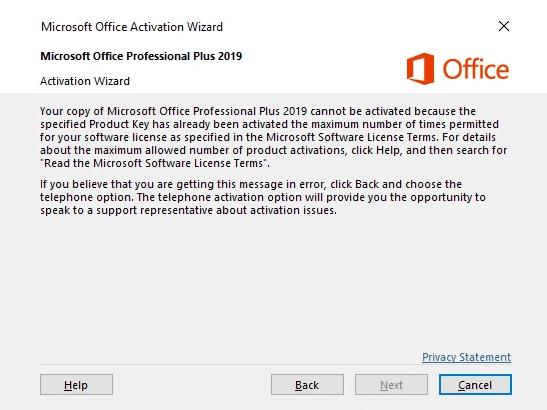
Step 1: Start the Activation Process
Open any Office application, such as Word, Excel, PowerPoint, Visio, Project, or Access.
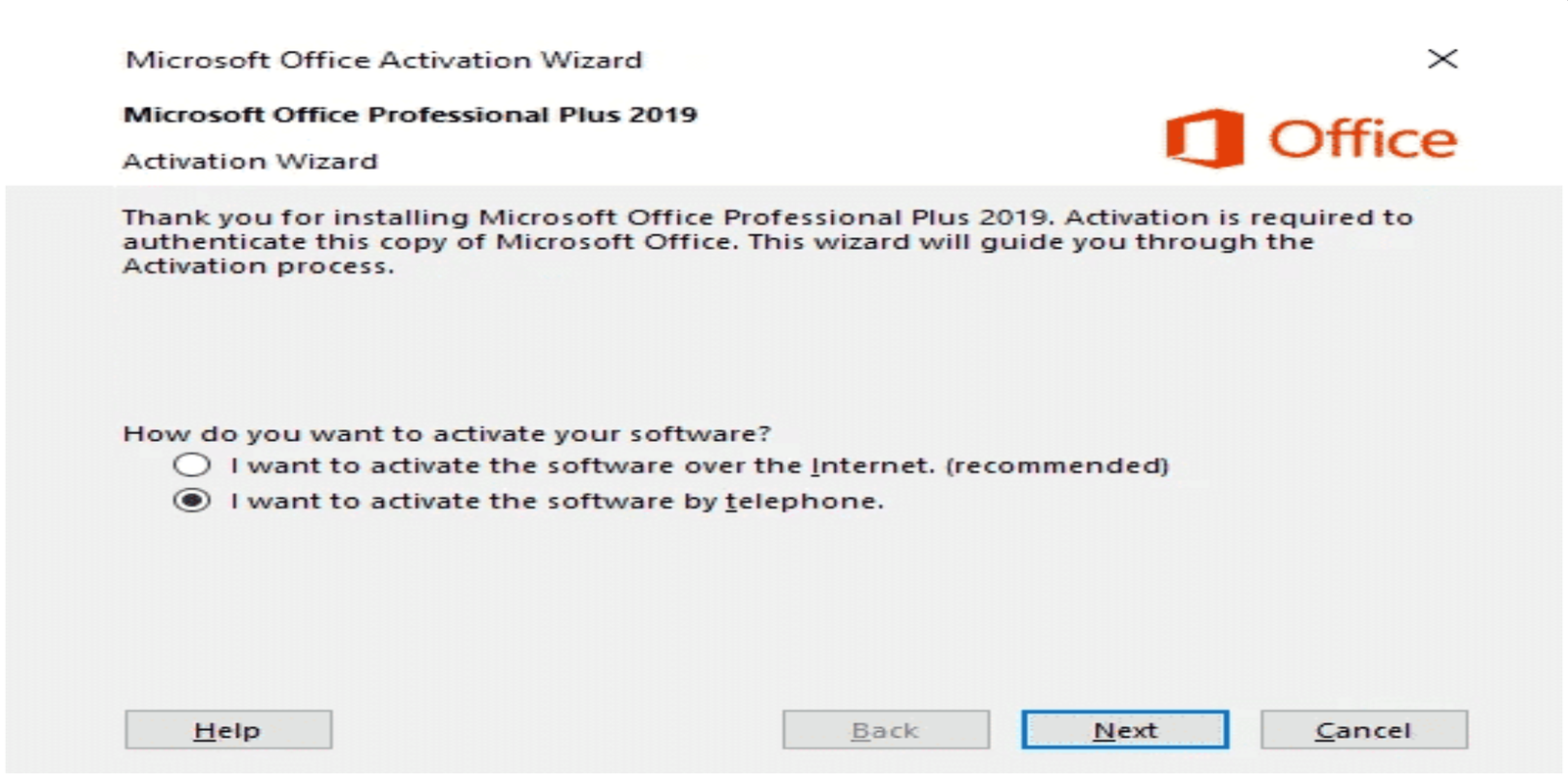
When prompted, select “I want to activate the software by telephone” and click Next.
Step 2: Choose Your Country
In the Location section, select your country or region from the list.
Step 3: Note Your Installation ID
You’ll see a long number string called the Installation ID displayed on the screen. Write this number down or keep the window open—you’ll need it for the next step.

Step 4: Get Your Confirmation ID (CID)
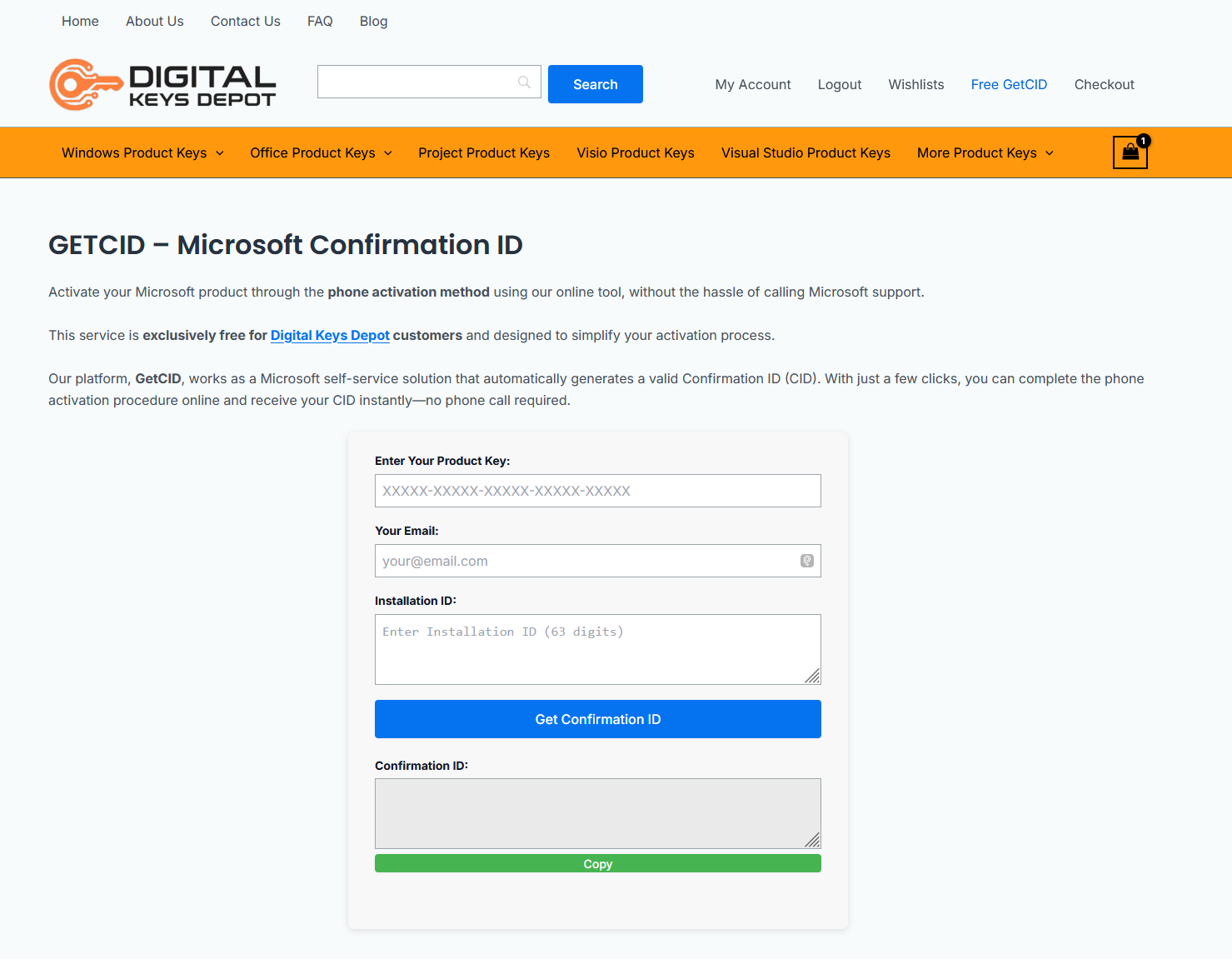
Go to an online service like GetCID tool or use Microsoft’s official phone activation system.
Enter your product key, email, and Installation ID into the provided field and click Get Confirmation ID to receive your Confirmation ID (CID).
Alternatively, you can call the Microsoft activation phone number provided on your screen and follow the automated prompts to enter your Installation ID and receive your CID.
Step 5: Enter the Confirmation ID
Back in the Office activation window, enter the Confirmation ID (CID) you received into the corresponding boxes (A through H).
Click Next to continue.

Step 6: Complete Activation
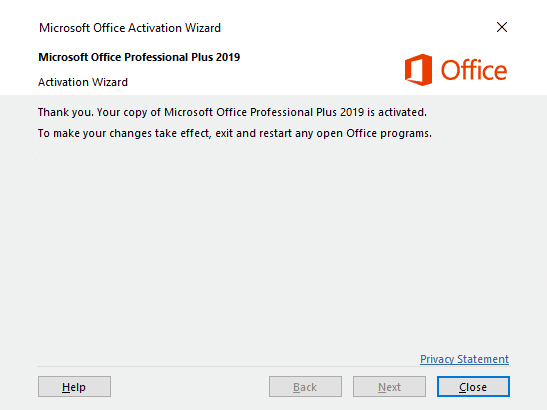
Once you’ve entered the CID, Office will confirm that your product is activated. You should see a success message—congratulations, your Office suite is now ready to use!
Tips and Notes
- No Internet Required: This method is perfect for computers without internet access or when online activation fails.
- Genuine Key Needed: Always use a valid, genuine product key for activation.
- Keep Your CID Safe: If you ever need to reinstall Office on the same device, having your CID can speed up reactivation.
- Troubleshooting: If you encounter issues or error messages, double-check your Installation ID and ensure you’re entering the CID correctly. For more help, contact our support or the detailed troubleshooting guide for Office activation errors.
Conclusion
Activating Office, Visio, Project, or Access using phone activation key is a reliable solution when internet access isn’t available. By following these steps, you can quickly and securely activate your software and enjoy all its features without delay. If you need further assistance, our support is always available to help you through the process.
For activation Office, Visio, Project, Access using an online key, you can read how to activate Office, Visio, Project, Access using an online key.