Activating Microsoft Office, Visio, Project, or Access with a Bind Key is a secure way to permanently link your license to your Microsoft account. This method ensures you can always reinstall and reactivate your software, even if you change devices or reinstall your operating system. Here’s a simple, step-by-step guide to help you through the process.
What is a Bind Key?
A Bind Key is a special type of product key that, once entered, becomes permanently attached to your Microsoft account. Instead of activating Office directly on your device, you bind the key to your email, making it easy to manage your license and reinstall Office products in the future. Remember, each Bind Key can only be used with one Microsoft account and cannot be transferred or reused elsewhere.
Step 1: Go to the Activation Page
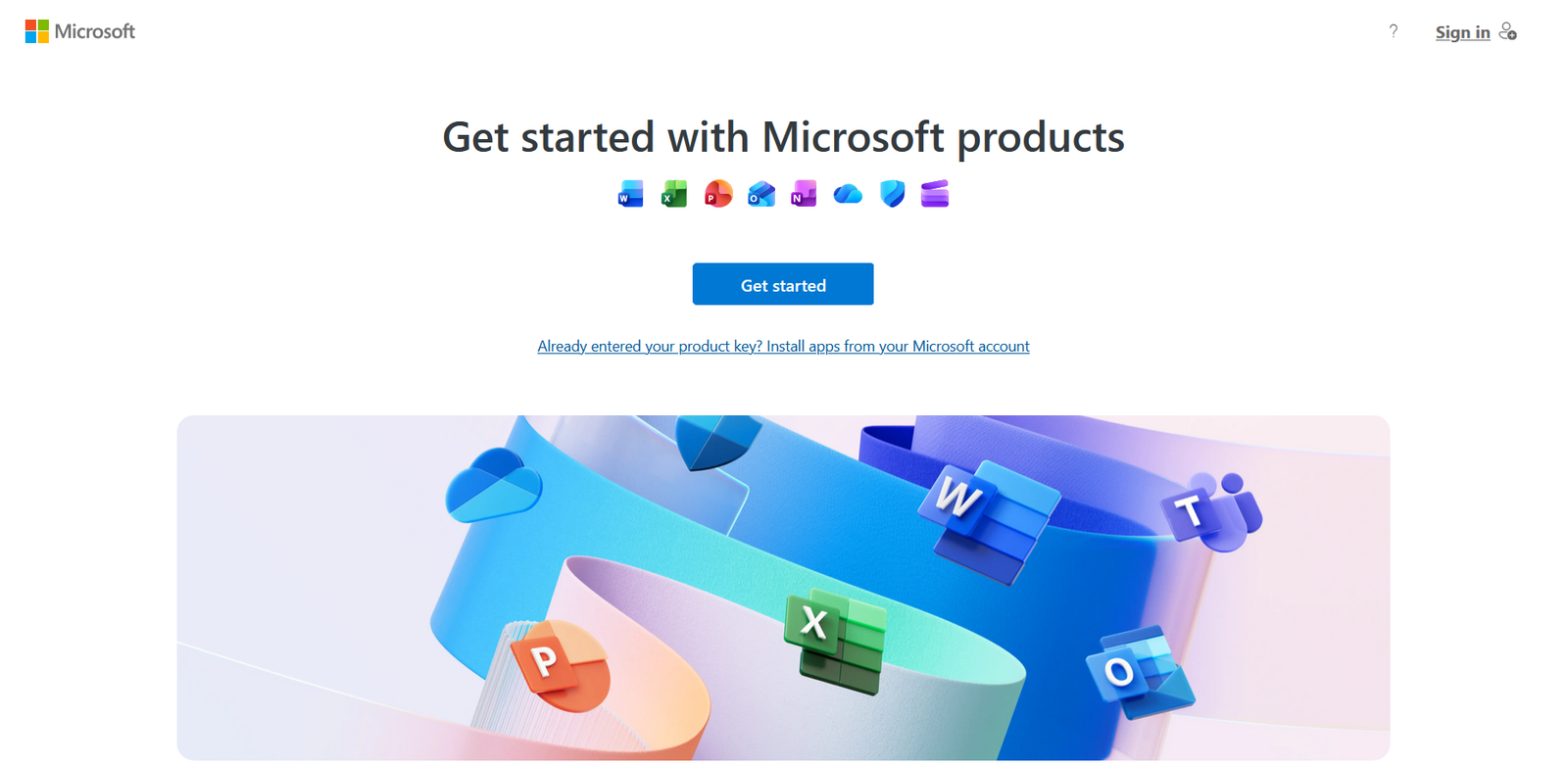
Open your browser and visit the official Microsoft setup page: https://setup.office.com
Step 2: Sign in to Your Microsoft Account
Log in with the Microsoft account you want to bind your license to. Make sure you use the correct email, as the license will be permanently linked to this account.
Step 3: Enter Your Product Key
Type in the 25-character Bind Key you received with your purchase. Select your country and language, then click Next to confirm. Once the key is successfully bound, your Microsoft account will have the license rights for Office, Visio, Project, or Access.
Step 4: Download and Install Office Products
After binding the key, you can download and install your Office software directly from your Microsoft account. Go to https://account.microsoft.com/services, sign in, and you’ll see your licensed products ready for download and installation.
Reinstalling or Moving to a New Device
If you ever need to reinstall Office or switch to a new computer, simply log in with the same Microsoft account. Your license will automatically activate, and there’s no need to re-enter the product key. This makes reinstallation and device upgrades hassle-free.
Device Transfer Instructions
If you need to transfer your license to a new device due to hardware failure or an upgrade, Microsoft allows this in necessary cases. Here’s how:
- Install the appropriate Office version on your new device and ensure it’s connected to the internet.
- Visit https://support.microsoft.com/contactus and select Office as your product.
- Choose “Get support for Home,” enter a keyword like “Activate Office 2021,” and click Get Help.
- Scroll down and sign in to contact support.
- Select Microsoft 365 and Office under Products and Services, then choose “Activate my product” in the Category.
- Click “Chat with a support agent” for direct assistance.
- Explain your situation (e.g., old device broken, upgrading to a new one) and provide the email used with your Bind Key if requested.
Once support confirms the transfer, open Office on your new device, sign in with your Microsoft account, and check your license status to ensure activation is successful.
Where to Buy Genuine Bind Keys
For a smooth activation and peace of mind, always use a genuine Bind Key from a trusted source, Digital Keys Depot. Here are product links for each software:
- Microsoft Office Home & Business 2024 BIND Key – Lifetime Activation for 1 PC or Mac
- Microsoft Visio Professional 2024 BIND Key – Lifetime Activation for 1 PC
- Microsoft Project Professional 2024 BIND Key – Lifetime Activation for 1 PC
- Microsoft Access 2024 BIND Key – Lifetime Activation for 1 PC
Important Notes
- Each Bind Key is for one Microsoft account only. Do not share or resell after use.
- Device transfers are supported but require Microsoft support intervention.
- Always keep your Microsoft account credentials safe, as your license is tied to your email.
Conclusion
Activating Office, Visio, Project, or Access with a Bind Key is the most reliable way to secure your license for permanent use. By binding your key to your Microsoft account, you ensure easy reinstallation and peace of mind, no matter what happens to your device.