
How to Install Microsoft Project Professional 2024 LTSC
Microsoft Project Professional 2024 LTSC is a Windows-based project management application for users who need professional tools to create project schedules, manage timelines, build Gantt charts, organize tasks, assign resources, track progress, and plan project workflows.
If you need to install Microsoft Project Professional 2024 LTSC on a Windows PC, one clean method is using the Office Deployment Tool, also known as ODT. This method uses a setup folder, a configuration.xml file, and a simple Command Prompt command to install the correct Microsoft Project product.
In this guide, you will learn how to install Microsoft Project Professional 2024 LTSC on a Windows PC using the Office Deployment Tool and the correct configuration.xml file for Project Professional 2024 Volume.
Before you begin, make sure you already have a valid Microsoft Project Professional 2024 LTSC product key. You will need to replace the sample key in the configuration file with your own product key.
Visit Digital Keys Depot to buy Microsoft Project Product Keys and other Microsoft software product keys.
Before You Begin
Before installing Microsoft Project Professional 2024 LTSC, please prepare the following:
- A Windows PC
- A stable internet connection
- Your Microsoft Project Professional 2024 LTSC product key
- Administrator access on your computer
- The Office Deployment Tool from Microsoft
- Enough free storage space for installation files
- A clean setup folder on your C: drive
- A few minutes to complete the installation process
This guide is for Windows PC only. It is not intended for Mac, Chromebook, iPhone, iPad, Android devices, Project for the web, or web-only Microsoft 365 apps.
Important Compatibility Notice
Microsoft Project Professional 2024 LTSC must be installed with the correct configuration.
If you use the wrong Product ID, wrong channel, wrong edition, wrong language setting, or a product key for another Microsoft product, the installation may fail or install a different product.
For this guide, the configuration file uses:
- OfficeClientEdition: 64-bit
- Channel: PerpetualVL2024
- Product ID: ProjectPro2024Volume
- Language: en-us
- Product key placeholder: XXXXX-XXXXX-XXXXX-XXXXX-XXXXX
Replace the placeholder product key with your actual Microsoft Project Professional 2024 LTSC product key before running the installation command.
What This Installation Method Does
This method installs Microsoft Project Professional 2024 LTSC using the Office Deployment Tool.
The Office Deployment Tool reads the configuration.xml file and uses it to install the product specified in the XML configuration.
This guide is designed for users who want to install Project Professional 2024 LTSC without using a standard installer window.
The installation process may run silently in the background because the configuration file uses:
That means you may not see a normal setup progress window.
Step 1: Uninstall Previous Office, Project, or Visio Versions If Needed
Before installing Microsoft Project Professional 2024 LTSC, it is recommended to remove older or conflicting Microsoft Office, Project, or Visio installations from your PC.
This can help prevent:
- Installation errors
- Activation conflicts
- Mixed Office component issues
- Wrong product detection
- Project opening with an older license
- Setup conflicts caused by older MSI-based Office products
To uninstall older versions:
- Open the Windows Start menu.
- Go to Settings.
- Open Apps.
- Look for older Microsoft Office, Project, or Visio installations.
- Select the program you want to remove.
- Click Uninstall.
- Follow the on-screen instructions.
- Restart your PC if required.
If you already have Office, Visio, or another Microsoft product installed, make sure it is compatible with Project Professional 2024 LTSC before continuing.
Step 2: Download the Office Deployment Tool
Next, download the official Office Deployment Tool from Microsoft.
You can search for:
Office Deployment Tool Microsoft Download
The Office Deployment Tool is used to install Click-to-Run versions of Microsoft Office products, including volume licensed versions of Project 2024.
After downloading the Office Deployment Tool, keep the file in your Downloads folder for now. You will extract it into a setup folder in the next steps.
Step 3: Create a Setup Folder
Open File Explorer and create a new folder on your C: drive.
Use this folder name:
C:\Office2024SetupThis folder will store the Office Deployment Tool files and your configuration.xml file.
Your setup folder path should look like this:
C:\Office2024SetupUsing a simple folder path is recommended because it makes the Command Prompt steps easier and helps avoid typing errors.
Step 4: Create the Configuration File
Now you need to create a configuration.xml file for Microsoft Project Professional 2024 LTSC.
This file tells the Office Deployment Tool which product to install, which channel to use, which edition to install, which language to use, and which product key should be applied.
Follow these steps:
- Open Notepad.
- Copy the configuration below.
- Replace XXXXX-XXXXX-XXXXX-XXXXX-XXXXX with your own Project Professional 2024 LTSC product key.
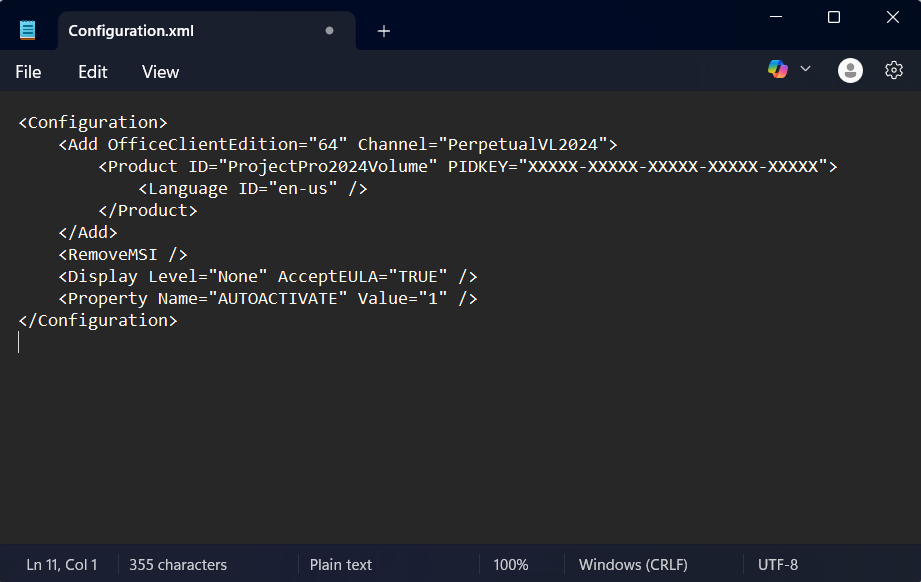
Use this configuration:
<Configuration>
    <Add OfficeClientEdition="64" Channel="PerpetualVL2024">
        <Product ID="ProjectPro2024Volume" PIDKEY="XXXXX-XXXXX-XXXXX-XXXXX-XXXXX">
            <Language ID="en-us" />
        </Product>
    </Add>
    <RemoveMSI />
    <Display Level="None" AcceptEULA="TRUE" />
    <Property Name="AUTOACTIVATE" Value="1" />
</Configuration>
Important: Do not leave the sample XXXXX product key in the file. Replace it with your actual product key before installing.
If you need a Project Professional 2024 LTSC product key, you can buy the correct product from Digital Keys Depot.
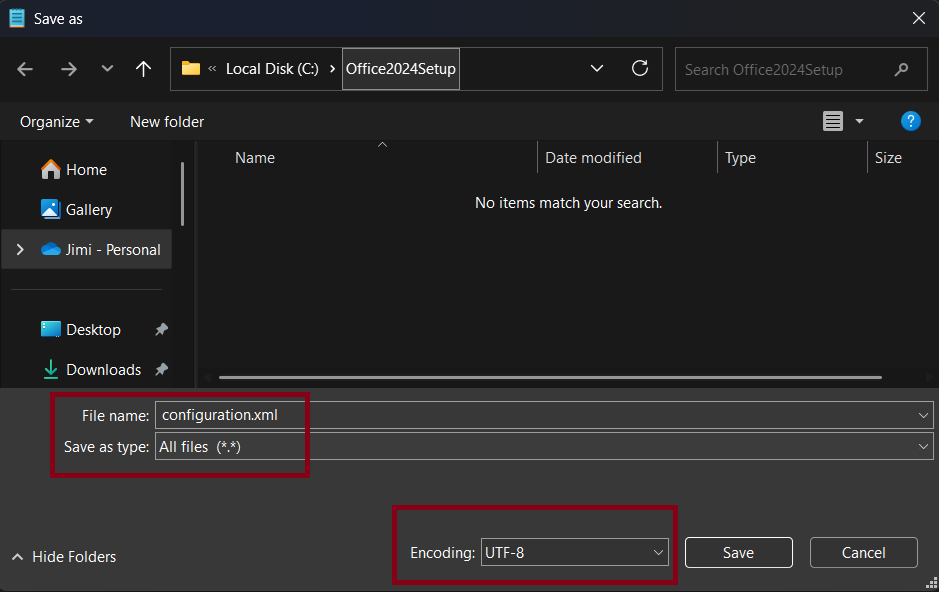
- When saving the file in Notepad, make sure to use the correct settings. Use these settings:
- File name: configuration.xml
- Save as type: All Files
- Encoding: UTF-8
- Save location: C:\Office2024Setup
Make sure the file is not saved as:
configuration.xml.txtThis is a common mistake when using Notepad. If Windows hides file extensions, the file may look correct even though it is actually saved as a text file.
To avoid this, always choose All Files when saving from Notepad.
Step 5: Extract the Office Deployment Tool
Now extract the Office Deployment Tool into the setup folder.
Follow these steps:
- Run the Office Deployment Tool file you downloaded earlier.
- If Windows asks for permission, click Yes.
- Accept the Microsoft Software License Terms.
- When asked where to extract the files, choose:
C:\Office2024Setup- Click OK or Continue.
- Wait until the extraction is complete.
After extraction, the folder should contain setup.exe and other files from the Office Deployment Tool.
Step 6: Verify Your Setup Folder
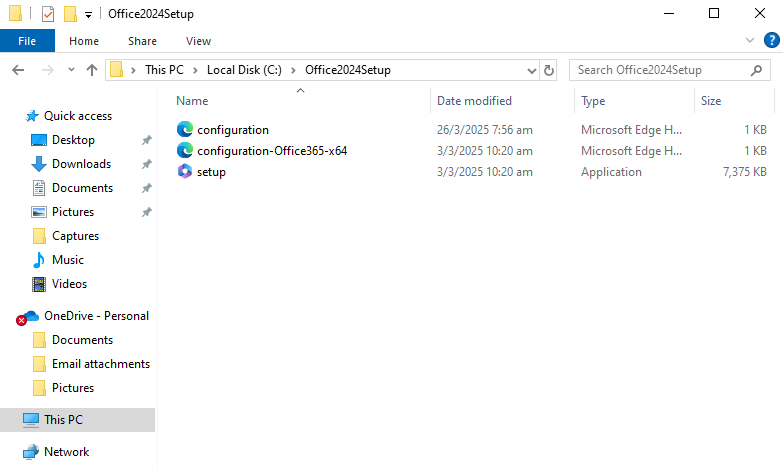
Before running the installation command, open this folder:
C:\Office2024Setup
Your folder should include:
- setup.exe
- configuration.xml
- Other Office Deployment Tool files
If setup.exe is missing, the Office Deployment Tool was not extracted correctly.
If configuration.xml is missing, create it again using Notepad and save it inside the correct folder.
Keeping setup.exe and configuration.xml in the same folder makes the installation command easier to run.
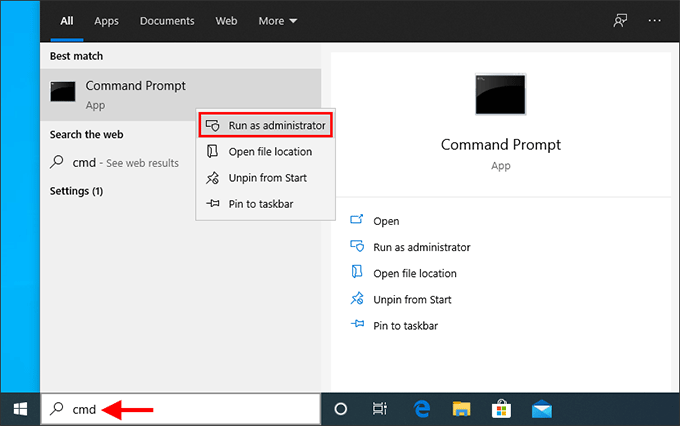
Step 7: Open Command Prompt as Administrator
Now you need to open Command Prompt with administrator permission.
Follow these steps:
- Click the Windows Start button.
- Type CMD.
- Right-click Command Prompt.
- Select Run as administrator.
- If Windows asks for permission, click Yes.
Administrator permission is important because the installation process needs system-level access to install Microsoft Project Professional 2024 LTSC.
Step 8: Navigate to the Setup Folder
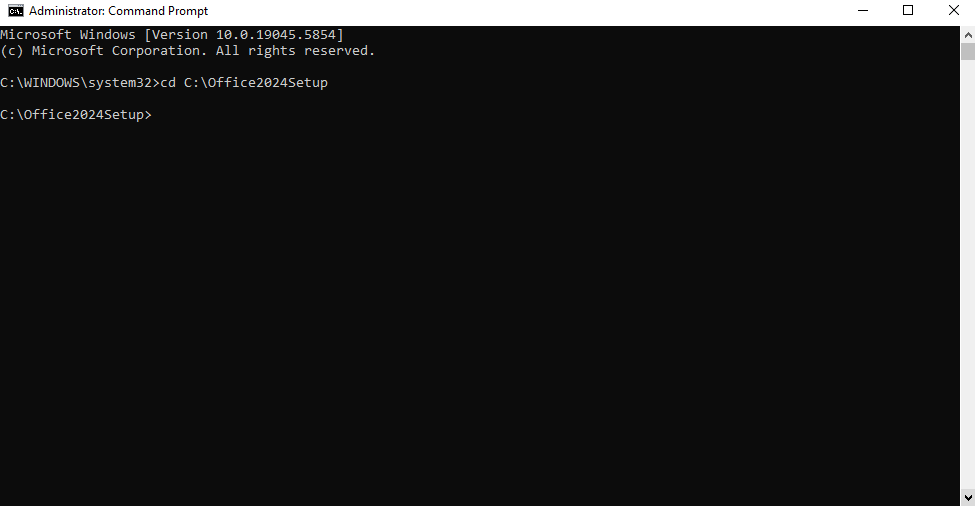
In the Command Prompt window, type the following command and press Enter:
cd C:\Office2024SetupAfter pressing Enter, the command line should move into the setup folder.
You should see something similar to:
C:\Office2024Setup>If you see an error, check that the folder name is correct and that the folder exists on your C: drive.
Step 9: Start the Project Professional 2024 LTSC Installation
To begin the installation, type this command and press Enter:
setup.exe /configure configuration.xmlThe Office Deployment Tool will now read your configuration.xml file and start installing Microsoft Project Professional 2024 LTSC.
Important Installation Notes
During installation, you may not see a normal installer window.
This is because the configuration file uses:
That means the installation may run silently in the background.
Please wait until the Command Prompt returns to:
C:\Office2024Setup>Do not close the Command Prompt while the installation is running.
Do not restart or shut down your PC during installation.
Do not delete setup.exe or configuration.xml while the installation is still running.
Step 10: Open Microsoft Project Professional 2024 LTSC
After installation is complete, open the Windows Start menu and search for:
Project
Then open Microsoft Project Professional 2024 LTSC.
If the installation was successful, Project should appear in your Start menu.
You can also check your installed apps list from Windows Settings if you want to confirm that Microsoft Project has been installed.
Step 11: Activate Microsoft Project Professional 2024 LTSC
The final step is activation.
Open Microsoft Project Professional 2024 LTSC and go to:
File > Account
If activation is required, click Activate Product and follow the activation instructions for your product key.
If your product uses telephone activation, select Activate by Telephone, obtain the Installation ID, then get the Confirmation ID through the phone prompt or through:
https://digitalkeysdepot.com/getcid
Enter the Confirmation ID into the activation wizard to complete activation.
For full Project Professional 2024 LTSC activation guide click here
What Is Microsoft Project Professional 2024 LTSC Used For?
Microsoft Project Professional 2024 LTSC is used for project planning and project management on a Windows PC.
You can use it for:
- Creating project plans
- Building task lists
- Creating Gantt charts
- Managing project timelines
- Organizing project phases
- Setting task start dates and finish dates
- Managing dependencies
- Tracking progress
- Planning milestones
- Assigning resources
- Reviewing workloads
- Preparing project schedules
- Managing business projects
- Planning construction schedules
- Coordinating IT projects
- Organizing team-based work
This product is different from Microsoft Office, Microsoft Visio, Microsoft Planner, and Project for the web.
Troubleshooting: Project Does Not Appear After Installation
If Microsoft Project does not appear in your Start menu after installation, try these steps:
- Restart your PC.
- Search again for Project from the Start menu.
- Check whether the installation command has finished.
- Make sure setup.exe and configuration.xml are in the same folder.
- Make sure the configuration file uses Product ID=”ProjectPro2024Volume”.
- Run Command Prompt as administrator again.
- Run the installation command again.
If the problem continues, check whether an older Office, Project, or Visio installation is causing a conflict.
Troubleshooting: configuration.xml Opens as a Text File
If your configuration file opens as a text file or does not work during installation, the file may have been saved as:
configuration.xml.txtTo fix it:
- Open the C:\Office2024Setup folder.
- Enable file name extensions in File Explorer.
- Rename the file to configuration.xml.
- Make sure the file extension is .xml, not .txt.
- Run the installation command again.
The file must keep the .xml extension.
Troubleshooting: Product Key Error
If you receive a product key error, check the following:
- Make sure the product key was typed correctly.
- Make sure there are no extra spaces before or after the key.
- Make sure the key matches Microsoft Project Professional 2024 LTSC.
- Make sure the configuration file uses the correct Product ID.
- Make sure you did not use a key for a different product, such as Office, Visio, Project Standard, or another Project version.
The product key in the configuration file should replace the placeholder:
XXXXX-XXXXX-XXXXX-XXXXX-XXXXX
Troubleshooting: Installation Runs Silently
If nothing seems to happen after running the command, this may be normal.
Because the configuration file uses silent installation, there may be no visible progress window.
Wait until Command Prompt returns to the setup folder line.
You can also check Task Manager to see if Office setup processes are running in the background.
Troubleshooting: Wrong Product Installed
If the wrong Microsoft product is installed, check your configuration file carefully.
For Microsoft Project Professional 2024 LTSC, the Product ID should be:
ProjectPro2024Volume
If you use a different Product ID, the Office Deployment Tool may install another Microsoft product or fail to install the correct product.
Do not use the Visio Product ID for this guide.
For this Project installation guide, do not use:
VisioPro2024Volume
Use:
ProjectPro2024Volume
Troubleshooting: Command Prompt Shows a Path Error
If Command Prompt shows an error after typing:
cd C:\Office2024SetupCheck the following:
- Make sure the folder exists on your C: drive.
- Make sure the folder name is spelled correctly.
- Make sure there are no extra spaces in the command.
- Make sure you are using backslashes correctly.
- Make sure you created the folder before running the command.
If your folder has a different name, use the correct folder path in Command Prompt.
Troubleshooting: Activation Does Not Start Automatically
The configuration file includes:
This tells the product to attempt automatic activation.
However, activation may still require manual steps depending on the product key, activation type, device status, and internet connection.
If activation does not complete automatically:
- Open Microsoft Project.
- Go to File > Account.
- Click Activate Product.
- Enter your product key if required.
- Follow the activation instructions shown on screen.
If your product uses telephone activation, follow the telephone activation process.
Configuration File Explained
Here is what each important part of the configuration file means:
OfficeClientEdition="64"This tells the Office Deployment Tool to install the 64-bit version.
Channel="PerpetualVL2024"This tells the installer to use the 2024 perpetual volume license channel.
Product ID="ProjectPro2024Volume"This tells the installer to install Microsoft Project Professional 2024 Volume.
PIDKEY="XXXXX-XXXXX-XXXXX-XXXXX-XXXXX"This is where your product key goes. Replace the placeholder with your actual Project Professional 2024 LTSC product key.
Language ID="en-us"This installs the English United States language version.
RemoveMSIThis helps remove older MSI-based Office installations that may conflict with the new installation.
Display Level="None"This makes the installation run without a normal setup window.
AcceptEULA="TRUE"This accepts the license terms during installation.
AUTOACTIVATE Value="1"This tells the product to attempt automatic activation after installation.
Recommended Folder Structure
For the easiest installation process, use this folder structure:
C:\Office2024Setup- setup.exe
- configuration.xml
Keeping both files in the same folder helps avoid command errors.
Common Mistakes to Avoid
Avoid these common installation mistakes:
- Using the wrong Product ID
- Using VisioPro2024Volume instead of ProjectPro2024Volume
- Saving the file as configuration.xml.txt
- Forgetting to replace the sample product key
- Running Command Prompt without administrator permission
- Typing the wrong folder path
- Closing Command Prompt before installation is complete
- Installing the wrong Project edition
- Using a Project Standard key for Project Professional
- Using an Office or Visio key instead of a Project key
- Trying to install on Mac or unsupported devices
- Deleting setup files before installation is finished
Frequently Asked Questions
Can I install Project Professional 2024 LTSC without the Office Deployment Tool?
For this installation method, the Office Deployment Tool is required. It allows you to install Microsoft Project Professional 2024 LTSC using a configuration.xml file.
What folder should I use?
This guide uses:
C:\Office2024SetupYou can use another folder, but using this path makes the commands easier to follow.
What should the configuration file be named?
The file should be named:
configuration.xmlMake sure it is not saved as configuration.xml.txt.
What Product ID should I use for Project Professional 2024 LTSC?
Use this Product ID:
ProjectPro2024Volume
Can I use this guide for Project Standard 2024?
No. This guide is specifically for Microsoft Project Professional 2024 LTSC. Project Standard uses a different product configuration.
Can I use this guide for Visio Professional 2024 LTSC?
No. Visio Professional 2024 LTSC uses a different Product ID. This guide is specifically for Microsoft Project Professional 2024 LTSC.
Can I use the Visio configuration file for Project?
No. Do not use the Visio configuration file for Project.
For Project Professional 2024 LTSC, use:
ProjectPro2024Volume
Is this guide for Windows or Mac?
This guide is for Windows PC only. It is not for Mac.
Why does the installation run without a window?
The configuration file uses silent installation with Display Level set to None. This means you may not see a traditional installer window.
What should I do after installation?
Open Microsoft Project from the Start menu, then go to File > Account to check your activation status.
Does this install Microsoft Office?
No. This configuration installs Microsoft Project Professional 2024 LTSC only. It does not install Word, Excel, PowerPoint, Outlook, or other Office apps.
For the Office Pro Plus LTSC Installation Guide:
👉 Office Pro Plus 2019 LTSC Installation Guide
👉 Office Pro Plus 2021 LTSC Installation Guide
👉 Office Pro Plus 2024 LTSC Installation Guide
Does this install Microsoft Visio?
No. This configuration installs Microsoft Project Professional 2024 LTSC only. It does not install Visio.
👉 Here is Visio Professional LTSC Installation Guide
Conclusion
Installing Microsoft Project Professional 2024 LTSC with the Office Deployment Tool is a clean and controlled method when you use the correct configuration.xml file.
The most important steps are preparing the setup folder, extracting the Office Deployment Tool, creating the configuration.xml file with Product ID=”ProjectPro2024Volume”, replacing the sample product key with your actual key, and running the setup command from Command Prompt as administrator.
After installation, open Microsoft Project and check your activation status from File > Account.
If you need a Microsoft Project Professional 2024 LTSC product key, visit Digital Keys Depot and choose the correct Project version, edition, activation method, and PC count before purchase.