
Windows 11 KB5074109 Problems: Microsoft Reportedly Suggests Uninstalling the Update
Windows updates are meant to improve stability and security. But sometimes a patch does the opposite.
The latest Windows 11 update, Windows 11 KB5074109, is being linked to a growing list of issues—ranging from slower performance to apps failing to open properly. Some users say the update caused workflow-breaking bugs, and reports indicate Microsoft is advising affected users to remove the update until a fix is available.
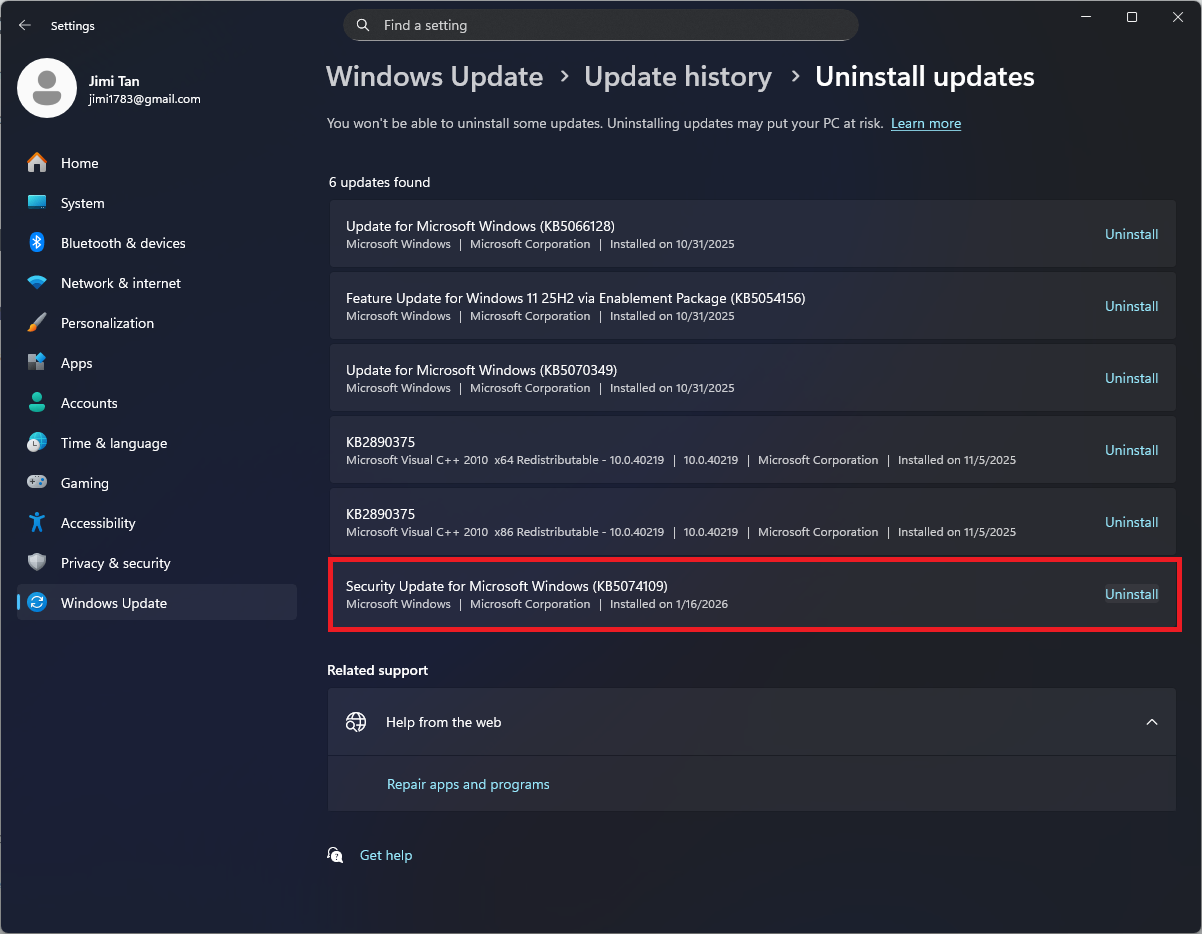
If your PC started acting up right after installing Windows 11 KB5074109, this guide walks you through what’s happening and how to uninstall the update safely.
What Issues Are Users Seeing After Windows 11 KB5074109?
Not every device is affected, but complaints often follow the same pattern: the update installs, and things that used to work fine suddenly don’t.
Commonly reported problems include:
- System performance feels slower than usual
- Apps freeze, hang, or crash randomly
- Microsoft Store and app licensing errors (including 0x803f8001)
- Outlook Classic issues on some systems
Because Windows behavior can vary by drivers and configuration, your experience may differ from other users—but if the timing lines up right after KB5074109, it’s a strong clue.
Should You Uninstall Windows 11 KB5074109?
If your PC is running normally, you may not need to do anything.
But if KB5074109 caused instability, app errors, or performance drops, uninstalling it can be a practical short-term fix.
One important note: rolling back updates can temporarily remove security fixes included in that patch. Still, stability matters—especially if the update is disrupting work or daily use.
How to Uninstall Windows 11 KB5074109 (Step-by-Step)
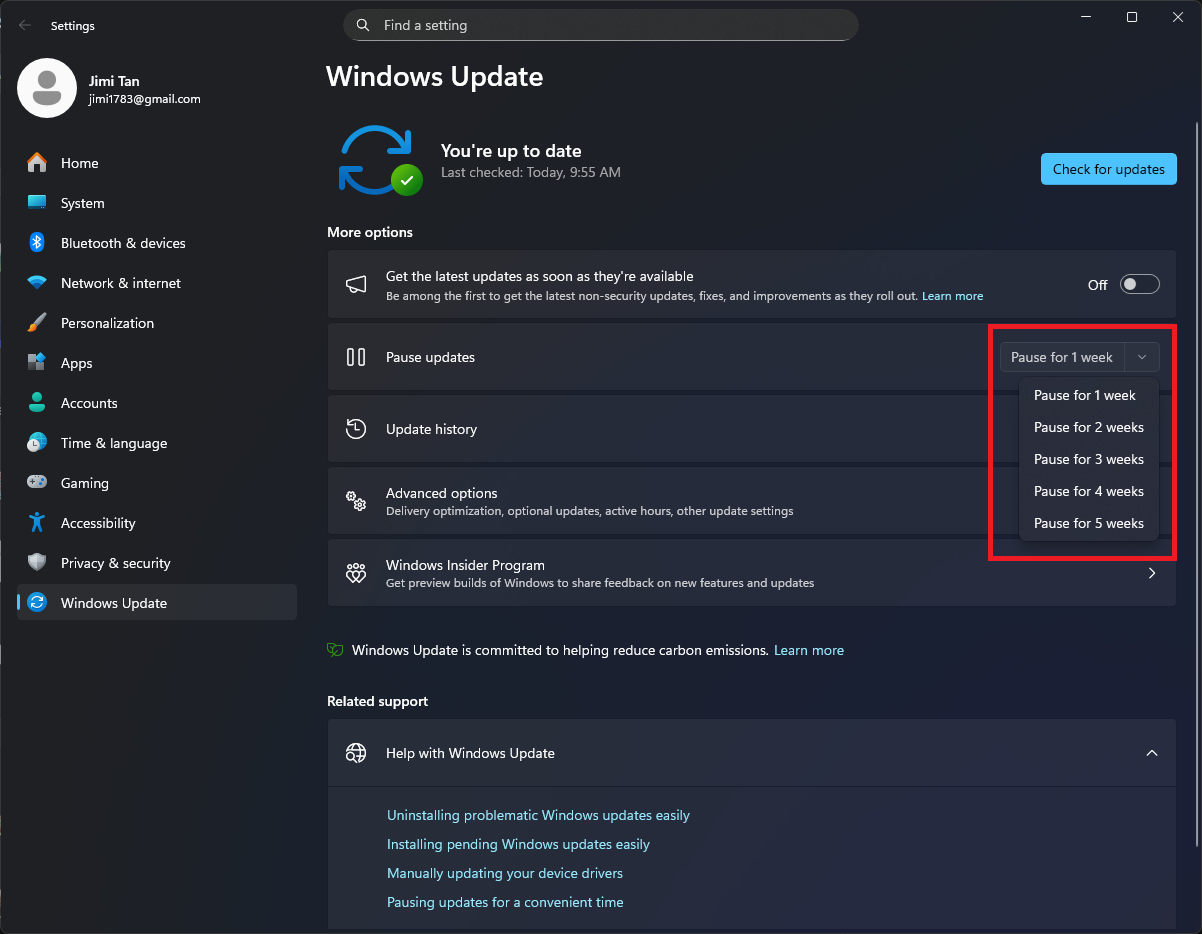
1) Pause Updates First (So It Doesn’t Reinstall)
Before uninstalling, pause Windows updates to reduce the chance KB5074109 comes back automatically.
- Open Settings
- Go to Windows Update
- Click Pause updates
- Choose a duration (1–5 weeks)
2) Uninstall the Update
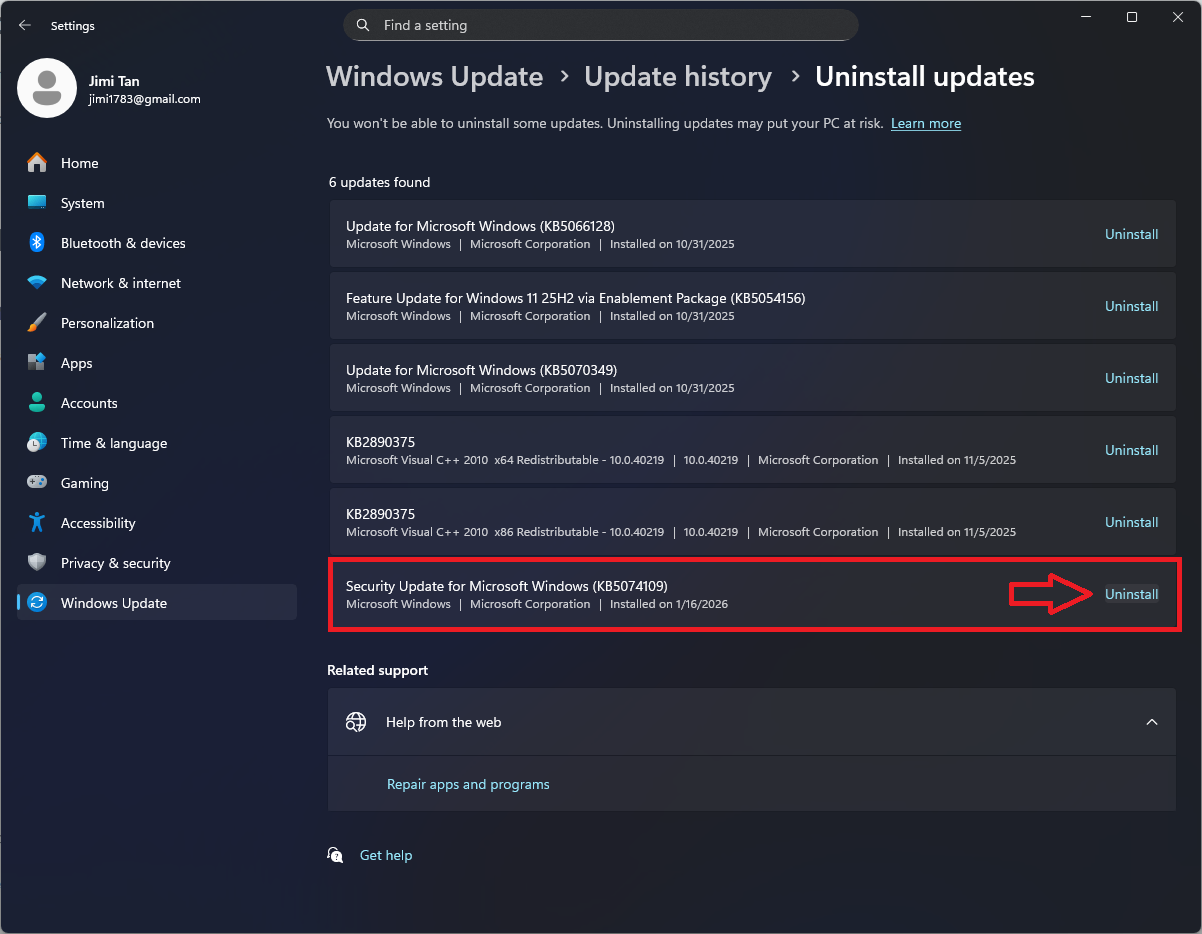
- Go to Settings → Windows Update
- Click Update history
- Scroll down and choose Uninstall updates
- Find Windows 11 KB5074109
- Click Uninstall
3) Restart Your PC
Restart after uninstalling. This helps Windows finalize the rollback.
In many cases, users report their system returns to normal behavior once the update is removed.
What to Do After Uninstalling KB5074109
After your PC is stable again, you have a few smart options:
- Keep updates paused until a corrected patch is released
- Watch official Windows update notes for a confirmed fix
- Avoid reinstalling KB5074109 until reports show it’s safe
👉 Related guide: Some Common Error Codes During Windows Activation
Need a Reliable Windows Setup?
If you’re troubleshooting update issues and want to ensure your Windows installation is properly activated, a valid license can help reduce random activation/app licensing headaches over time.
✅ Windows 11 Pro Product Keys:
👉 Retail Online Product Key (1 PC)
👉 Retail Online Product Key (5 PCs)
👉 MAK Volume Product Key (20 PCs)
👉 OEM Product Key (1 PC)
👉 Telephone Activation Product Key (1 PC)
👉 Pro N Product Key (5 PCs)
👉 Pro for Workstation Product Key (1 PC)
Related guide: Some Common Error Codes During Office Activation
FAQ
Q: What is Windows 11 KB5074109?
A: Windows 11 KB5074109 is a Windows Update patch that was released to improve system performance and security, but it has been linked to bugs and instability on some devices.
Q: What problems can Windows 11 KB5074109 cause?
A: Reported issues include performance slowdowns, apps freezing, Microsoft Store/app licensing errors such as 0x803f8001, and Outlook Classic problems on certain systems.
Q: Is it safe to uninstall KB5074109?
A: Uninstalling can restore stability if the update caused issues. However, removing updates may temporarily reduce security protections included in the patch.
Q: How do I stop KB5074109 from reinstalling automatically?
A: Go to Settings → Windows Update → Pause updates for a few weeks. This helps prevent Windows from reinstalling the same patch immediately after you uninstall it.
Q: Will Microsoft release a fix for KB5074109?
A: Typically, if a patch causes widespread problems, Microsoft issues a follow-up update or adjustment in a later release. Monitor update notes and community reports before reinstalling.