
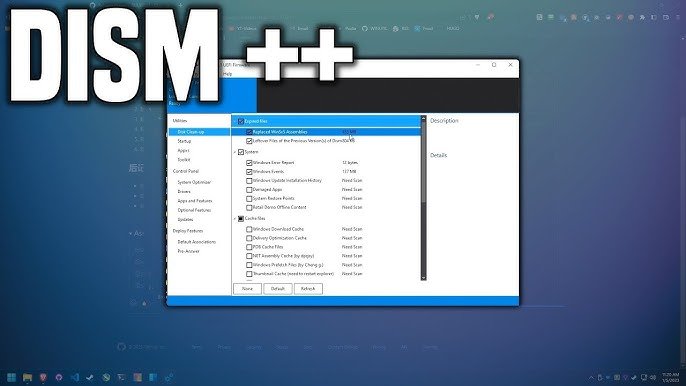
Backing up your Windows or Office license is a smart way to ensure you never lose your activation, even after reinstalling your system or upgrading hardware. Here’s a clear, step-by-step guide to help you back up and restore your license for permanent use using Dism++.
BACKUP LICENSE
Open Dism++ Software
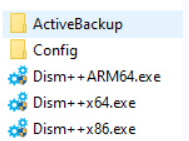
Download Dism++ here and extract the files. If you are using Windows 32-bit, run Dism++ x86.exe. For Windows 64-bit, run Dism++ x64.exe.
Proceed with License Backup
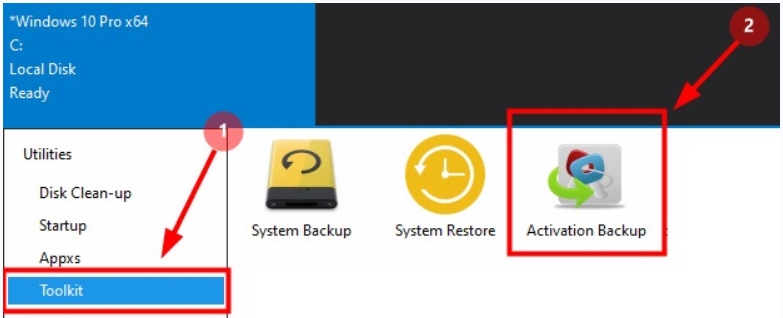
Once Dism++ is open, go to the Toolkit tab and select Activation Backup.
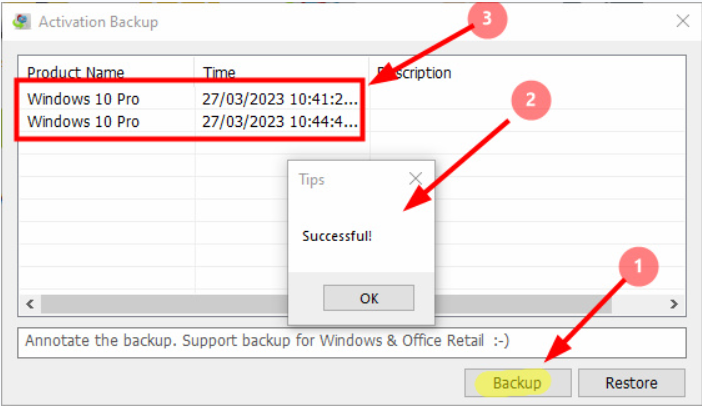
Click the Backup button to start the license backup process. If you see the message “Successful!”, your license backup is complete.
RESTORE LICENSE
Open Dism++ and go to the Activation Backup section. In the Product Name list, select the license you want to restore. Click Restore to begin the restoration process. If the message “Successful!” appears, your license has been restored
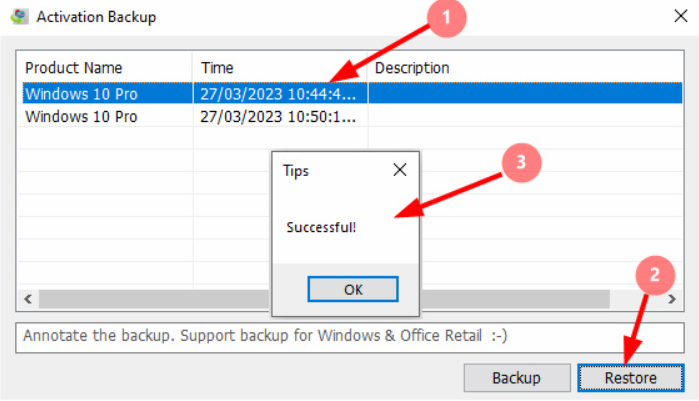
Important Notes When Restoring License
Make sure your computer is connected to the internet during the restoration process. Always reinstall the same version of Windows or Office that you backed up to ensure the license restores correctly.
IMPORTANT NOTES
Notes When Backing Up
Avoid making repeated backups, as this can create duplicate files in the ActiveBackup folder. Delete unnecessary backup files to keep your backups organized.
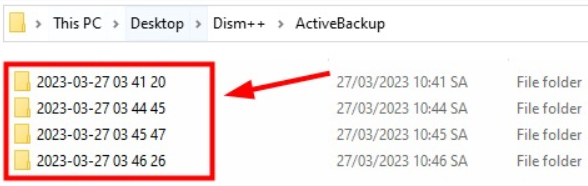
1. Duplicate Backup Error
If you back up too frequently, you may see duplicate files. Remove or rename these files for easier management.
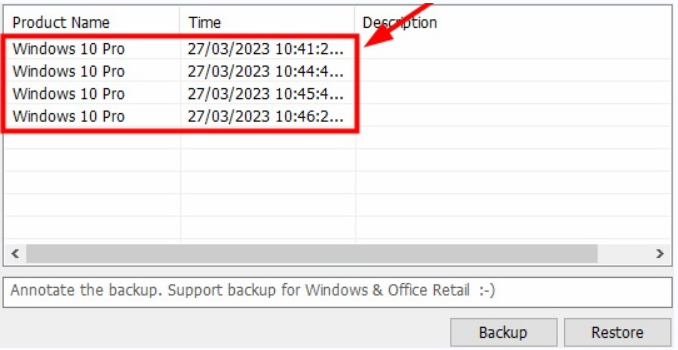
2. Delete Unnecessary Files
Regularly delete or rename backup files you no longer need to keep your ActiveBackup folder tidy.

License Storage
All your Windows, Office, Visio, and Project licenses are stored in the ActiveBackup folder. For safety, store this folder on a separate drive like D or E, or upload it to cloud storage such as Google Drive or OneDrive.
Avoid keeping backups on drive C to prevent accidental loss during system reinstalls.
Conclusion
By following these steps, you can easily back up and restore your license for permanent use. This ensures your Windows or Office activation is always safe, giving you peace of mind whenever you need to reinstall or upgrade your system.