
Phone activation is an alternative method for activating Windows 10 or Windows 11 when online activation does not complete automatically. This method is commonly used when Windows asks for an Installation ID and Confirmation ID during the activation process.
This guide explains how to activate Windows using a phone activation key and how to get the Confirmation ID through the Digital Keys Depot CID page.
Before You Start
Make sure you are using the correct Windows edition for your product key. For example, a Windows Home key must be used on Windows Home, while a Windows Pro key must be used on Windows Pro. Using the wrong edition may cause activation errors.
If you are activating Windows 10 Pro or Windows 11 Pro and need a key that uses the phone activation method, you can use the Windows 10/11 Pro telephone activation key for 1 PC before following the steps below.
You should also prepare:
- Your Windows 10/11 product key
- Access to your Windows Activation Settings
- Your Installation ID from the phone activation window
Step 1: Open Windows Activation Settings
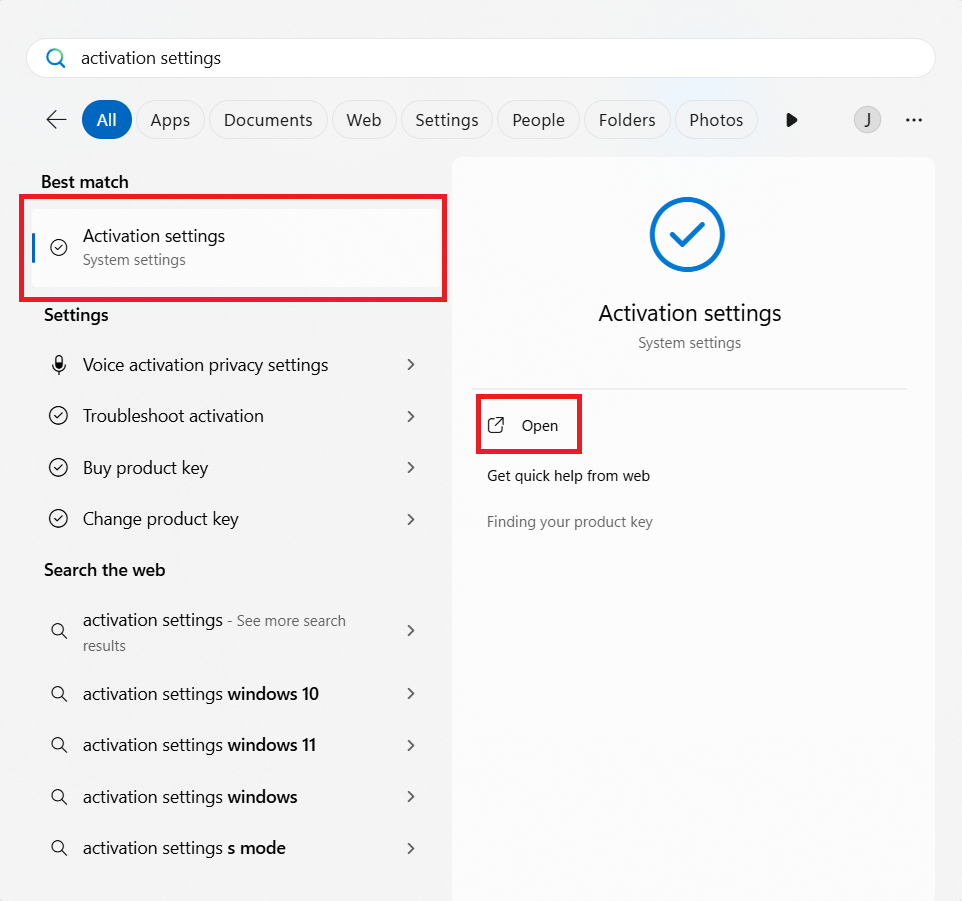
Click the Start button, then type Activation Settings in the search bar.
Open the Activation Settings page from the search results. This page shows your current Windows activation status and allows you to enter or change your product key.
Step 2: Enter Your Product Key
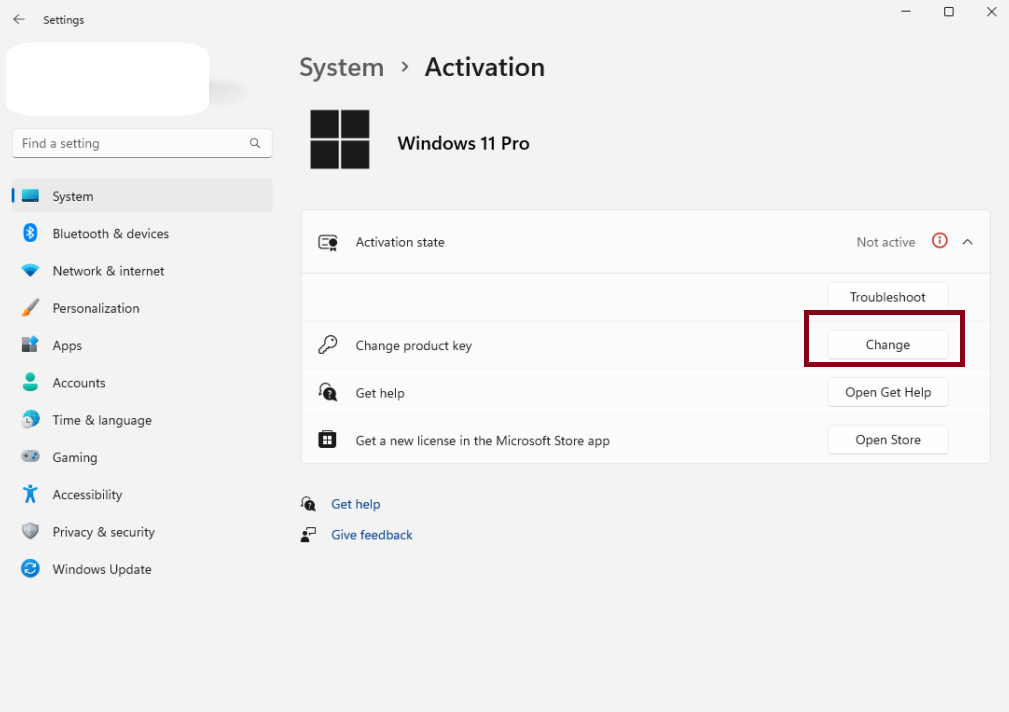
On the Activation Settings page, click Change under the Change product key section.
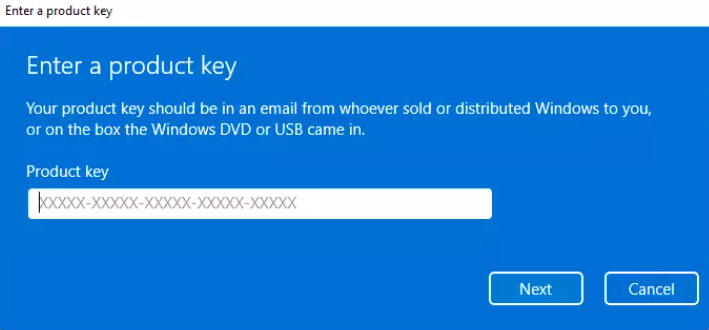
Enter your Windows product key in this format:
XXXXX-XXXXX-XXXXX-XXXXX-XXXXX
After entering the key, click Next and follow the on-screen instructions.
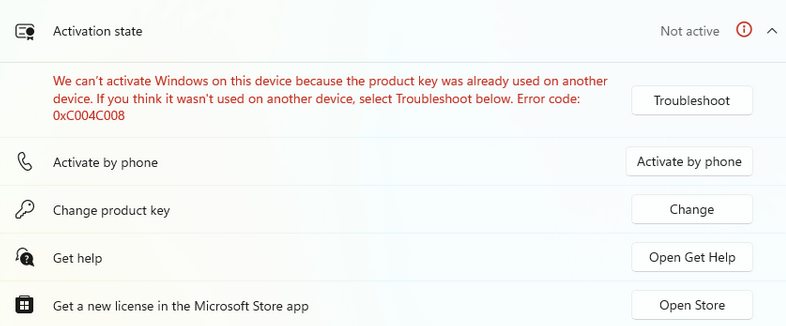
In some cases, Windows may show an activation message such as:
“We can’t activate Windows on this device because the product key was already used on another device. Error code: 0xC004C008.”
If this message appears, continue with the phone activation steps below.
Step 3: Open the Phone Activation Window
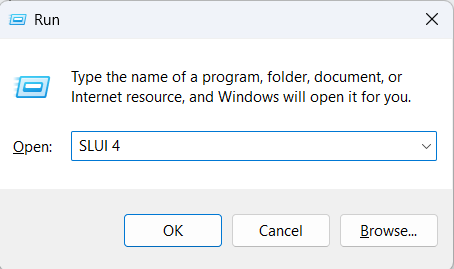
Press Windows Key + R on your keyboard to open the Run dialog box.
Type:
SLUI 4
Then press Enter.
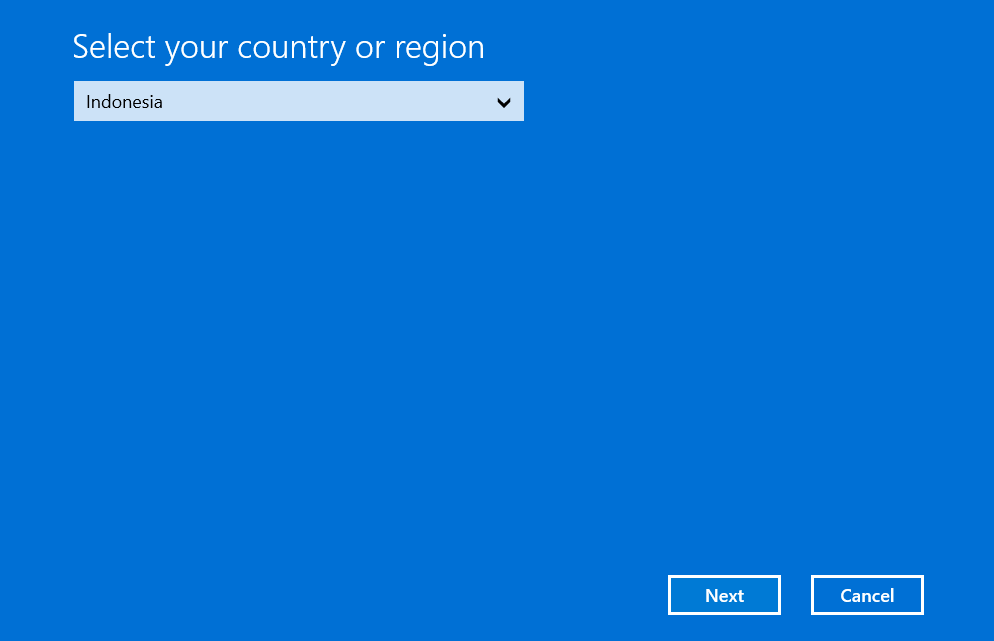
A phone activation window should appear. Select your country or region from the list, then click Next.
If nothing happens after running SLUI 4, return to the Activation Settings page and look for the Activate by phone option from the activation screen.
Step 4: Find Your Installation ID
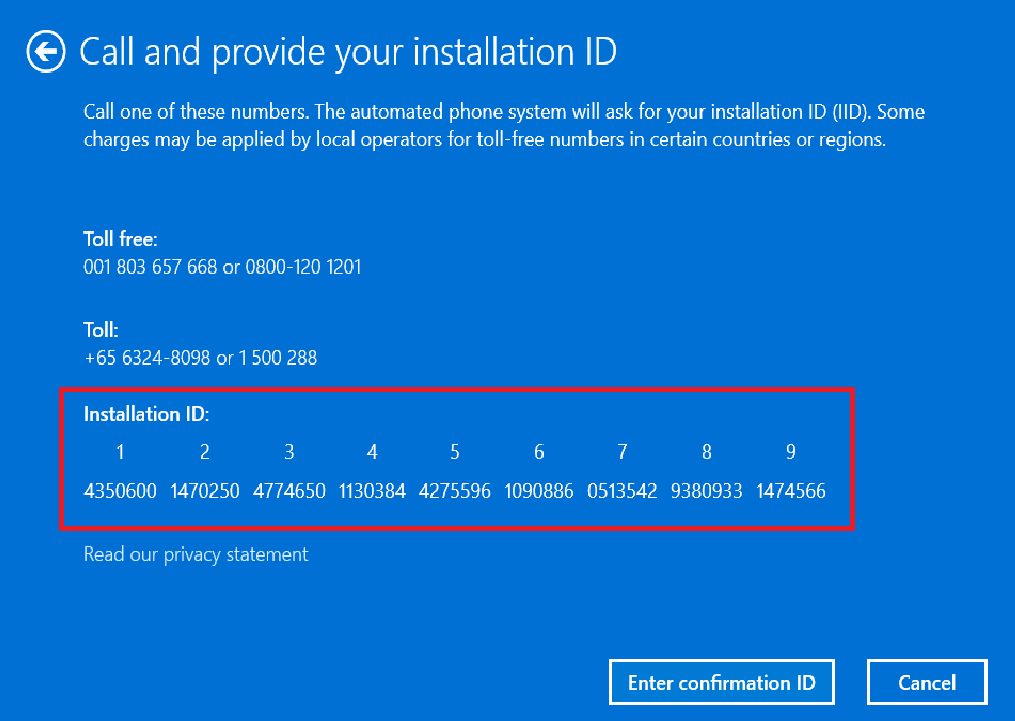
After selecting your country or region, Windows will display an Installation ID.
The Installation ID is a long number used to generate a Confirmation ID. Keep this window open because you will need to enter the Confirmation ID back into the same activation wizard later.
Step 5: Get Your Confirmation ID
Go to:
👉 https://digitalkeysdepot.com/getcid/
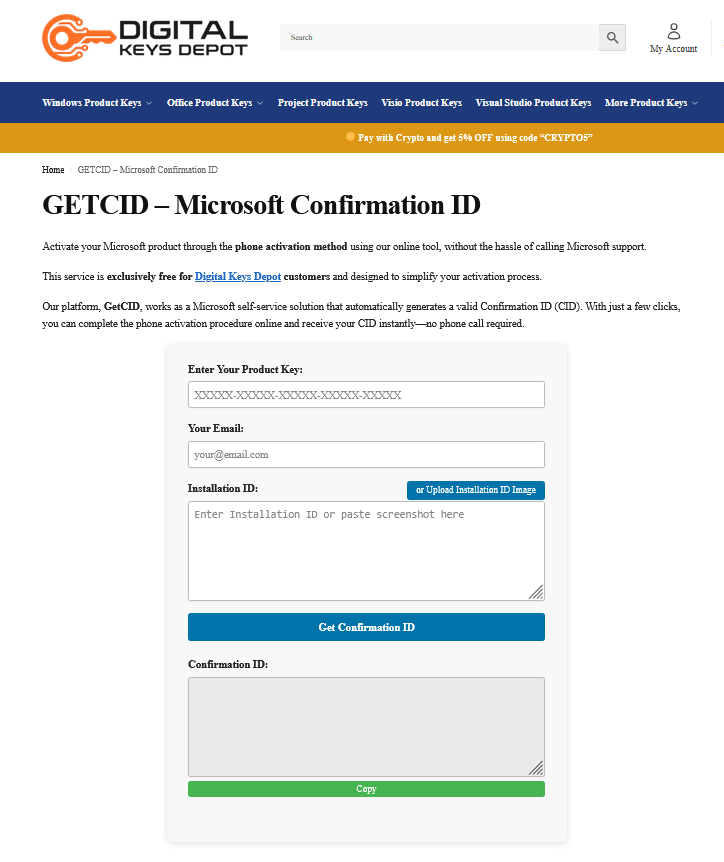
On the page, complete the required fields:
- Enter Your Product Key: Enter the product key you purchased, using the format XXXXX-XXXXX-XXXXX-XXXXX-XXXXX
- Your Email: Enter a valid email address
- Installation ID: Enter the Installation ID shown on your Windows activation screen
When entering the Installation ID, type or paste it without spaces or dash symbols. It should contain 63 digits. If the Installation ID is entered correctly, the system may automatically format it with separators.
You can also paste a screenshot or upload an image of the Installation ID if that option is available on the page.
After all information is entered, click Get Confirmation ID and wait for the Confirmation ID to appear.
Step 6: Enter the Confirmation ID in Windows
Once you receive the Confirmation ID, return to the Windows phone activation window.
Click Enter Confirmation ID, then enter the Confirmation ID into the fields provided by Windows.
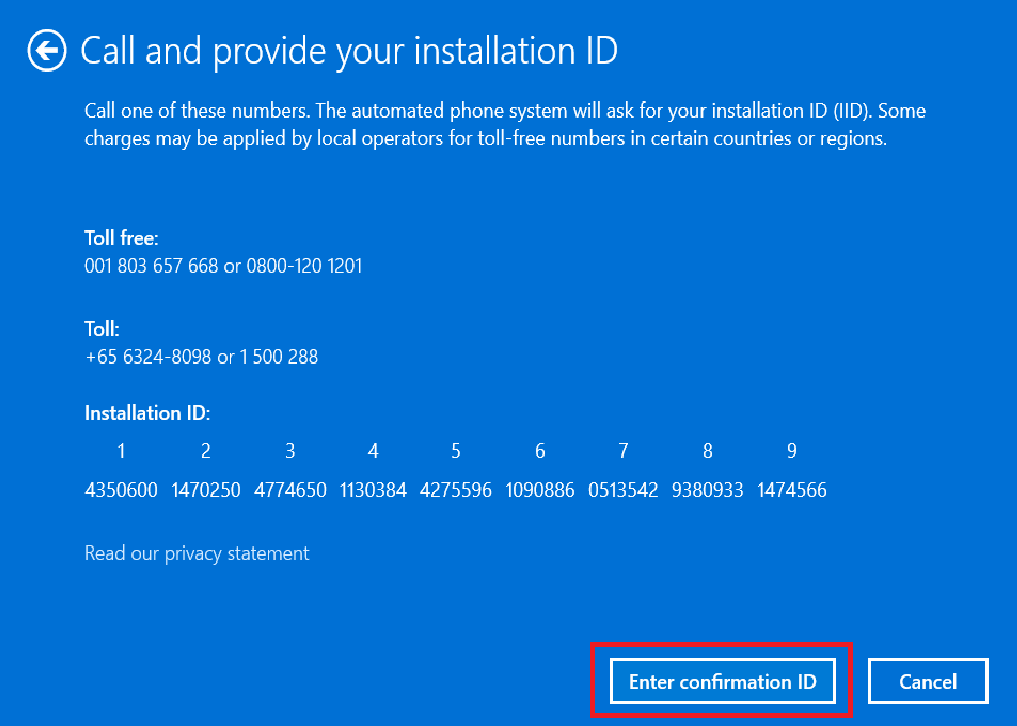
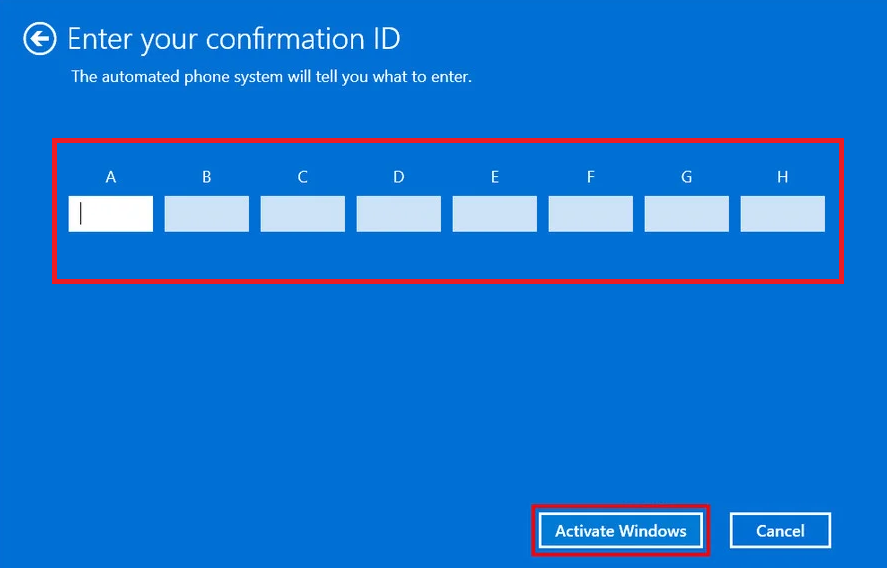
After entering all sections correctly, click Activate Windows.
Windows will then process the Confirmation ID and complete the activation.
If You See an Error Message
If the Digital Keys Depot CID page shows an error, double-check the following:
- The product key is entered correctly
- The email address is valid
- The Installation ID has exactly 63 digits
- There are no missing numbers, extra spaces, or incorrect characters
After checking the details, click Get Confirmation ID again.
If Windows shows a message such as:
“Can’t activate Windows by phone. Contact your system administrator for more info.”
Restart your computer. In many cases, Windows will show as activated after the restart.
Activation Notes
Phone activation is designed for cases where Windows requires an Installation ID and Confirmation ID instead of completing activation directly online.
To avoid activation issues, always confirm that:
- Your installed Windows edition matches the product key edition
- You are entering the key on the correct device
- The Installation ID comes from the same device you want to activate
- The Confirmation ID is entered exactly as provided
Final Check
After activation, you can confirm the result by going to:
Start > Settings > System > Activation
If activation is successful, Windows will show that your device is activated.
Your Windows 10/11 system is now ready to use.